
How to Install an EA in MT5: Beginner's Guide
Updated: May 15, 2026
▼ Table of Contents
STEP 1 | Download EA File
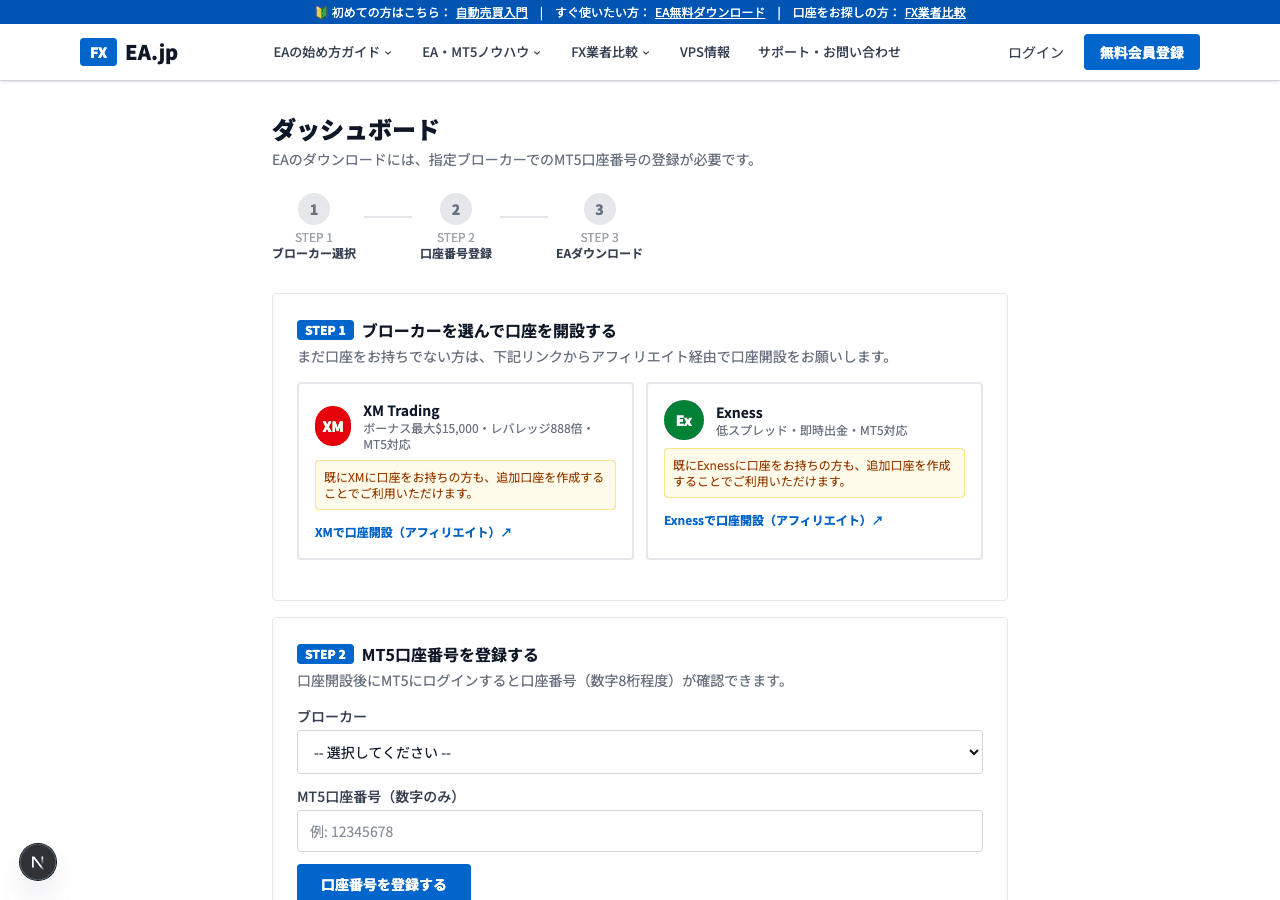
Enter your MT5 account number in the sign-up form on the free EA page (DONCHIAN ENGINE). After approval you receive the download link by email. Unzip DONCHIAN_ENGINE.zip to get the EA itself (DONCHIAN_ENGINE_EA.ex5) and a first-time setup note (SETUP_FIRST.txt). The .ex5 is already compiled, so no compilation is needed.
STEP 2 | Copy EA File to MT5 Folder
Place the downloaded EA file in a folder that MT5 can recognize.
※ AppData is a hidden folder. In Explorer, go to 'View' → enable 'Show hidden files'.
Easy Method: Open from MT5 Menu
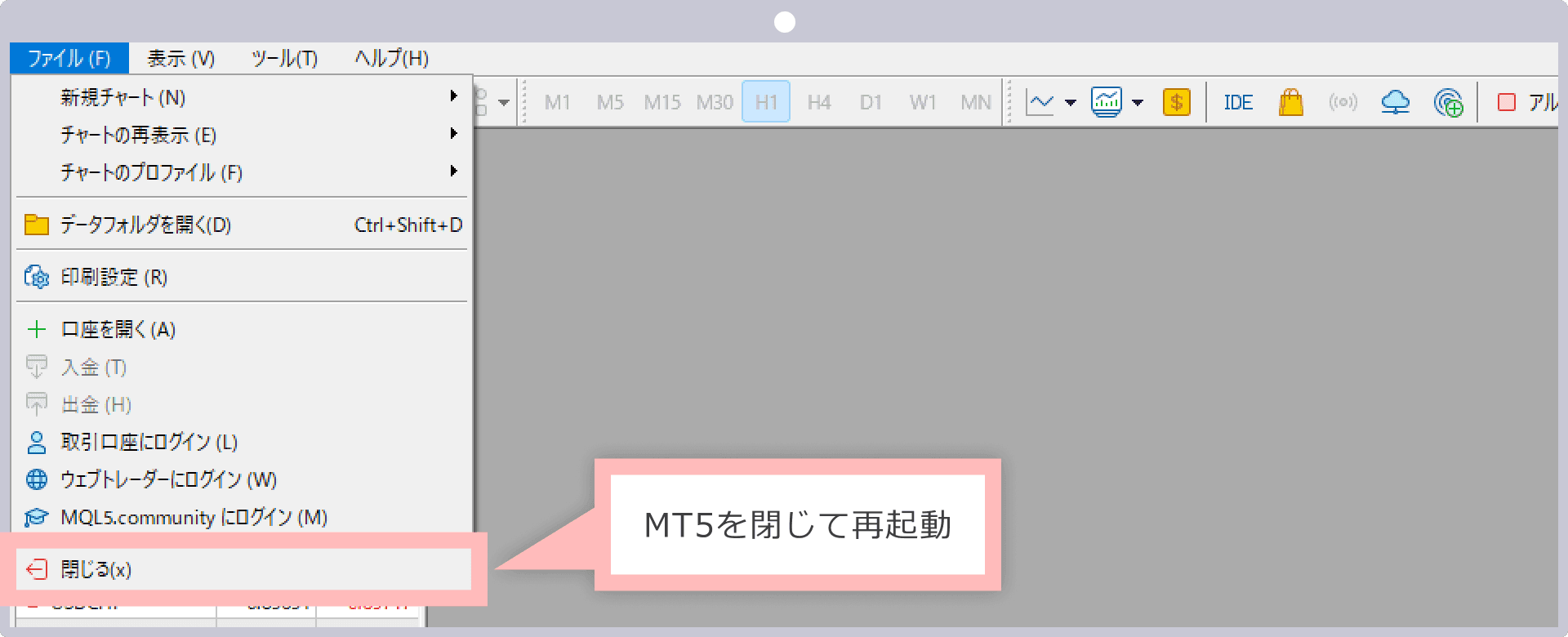
- 1.Launch MT5 and click 'File' → 'Open Data Folder' from the top menu
- 2.Open the 'MQL5' → 'Experts' folder
- 3.Copy & paste the downloaded DONCHIAN_ENGINE_EA.ex5 file into this folder
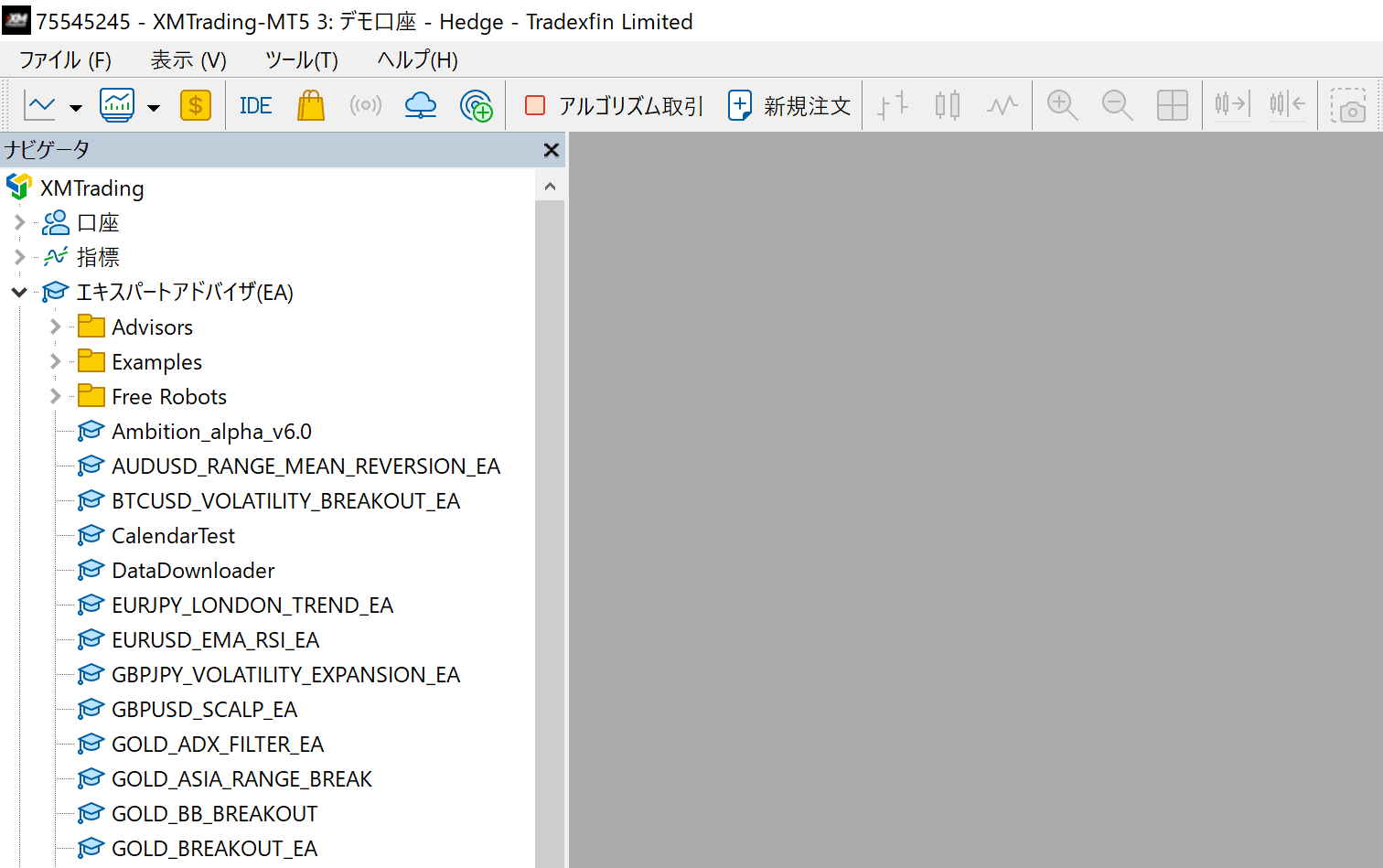
📌 Broker Symbol Reference
Even for USDJPY, symbol names differ by broker. Always confirm the exact symbol name for your broker
| Broker | GOLD | EURUSD | USDJPY | Note |
|---|---|---|---|---|
| XMTrading | GOLD | EURUSD | USDJPY | Standard/non-Micro accounts |
| XMTrading Micro | GOLDmicro | EURUSDmicro | USDJPYmicro | Micro account symbol |
| Exness Standard | XAUUSD | EURUSD | USDJPY | Standard account |
| Exness Pro/Raw/Zero | XAUUSD | EURUSD | USDJPY | Pro/Raw/Zero account |
| Exness Standard Cent | XAUUSDc | EURUSDc | USDJPYc | Cent account (note trailing 'c') |
STEP 3 | Enable EA in MT5
- 1
Refresh the Navigator
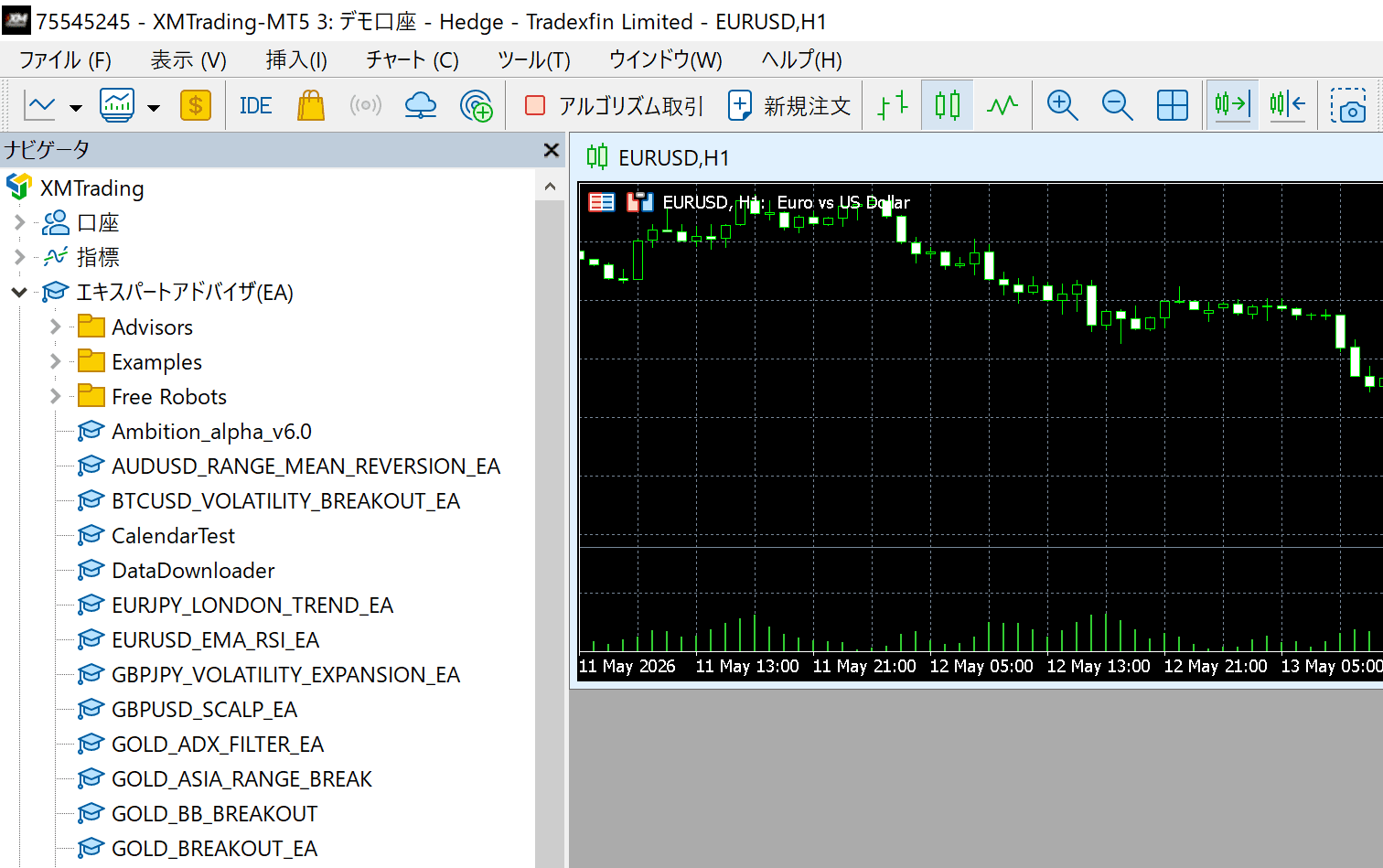
In the MT5 Navigator panel (left side), right-click 'Expert Advisors' → Click 'Refresh'. If DONCHIAN_ENGINE_EA appears, you've succeeded.
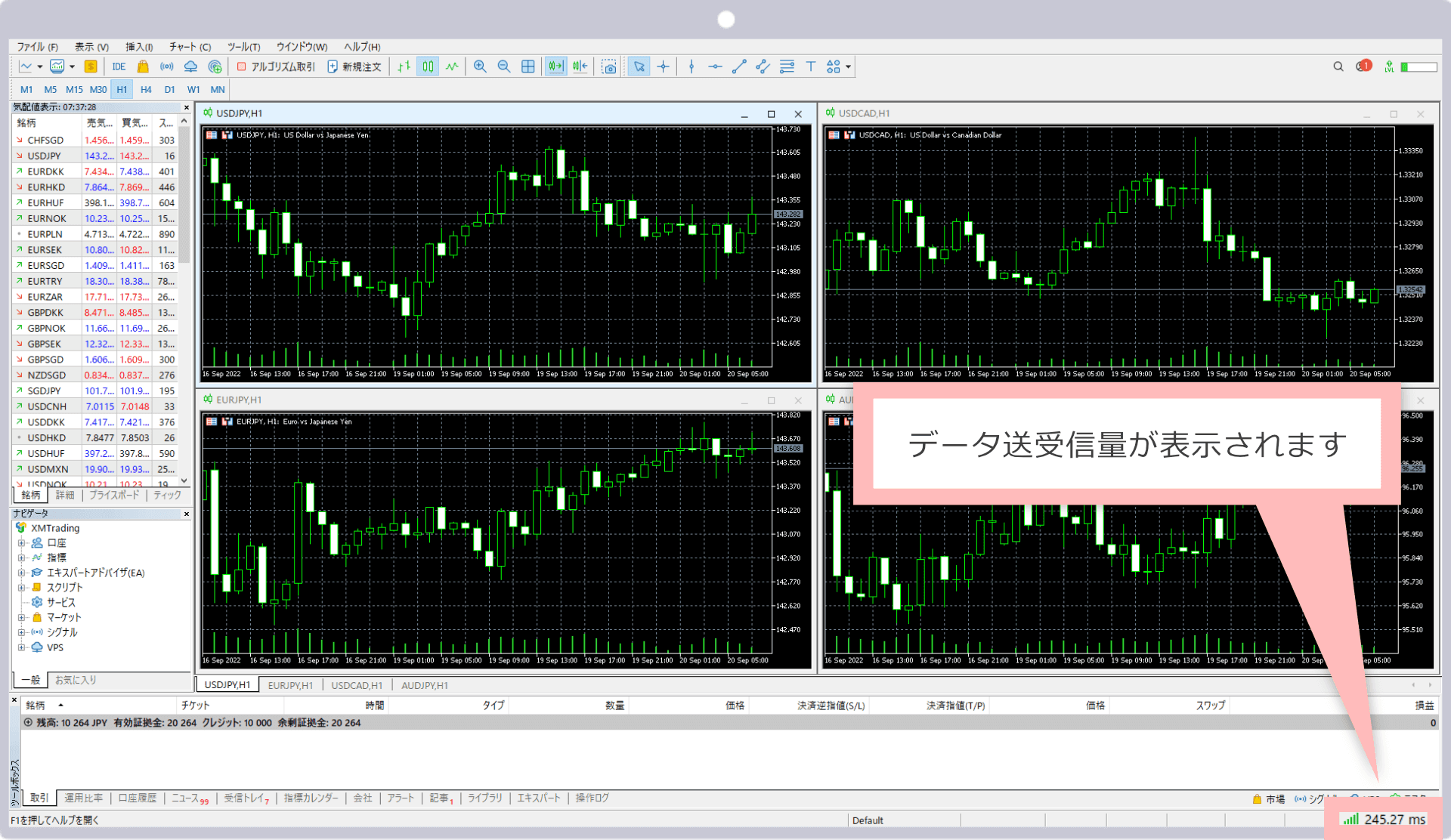
DONCHIAN_ENGINE_EA displayed in the list - 2
Display USDJPY Chart
File → New Chart → Select USDJPY. Set the timeframe to H1 (1 hour).
- 3
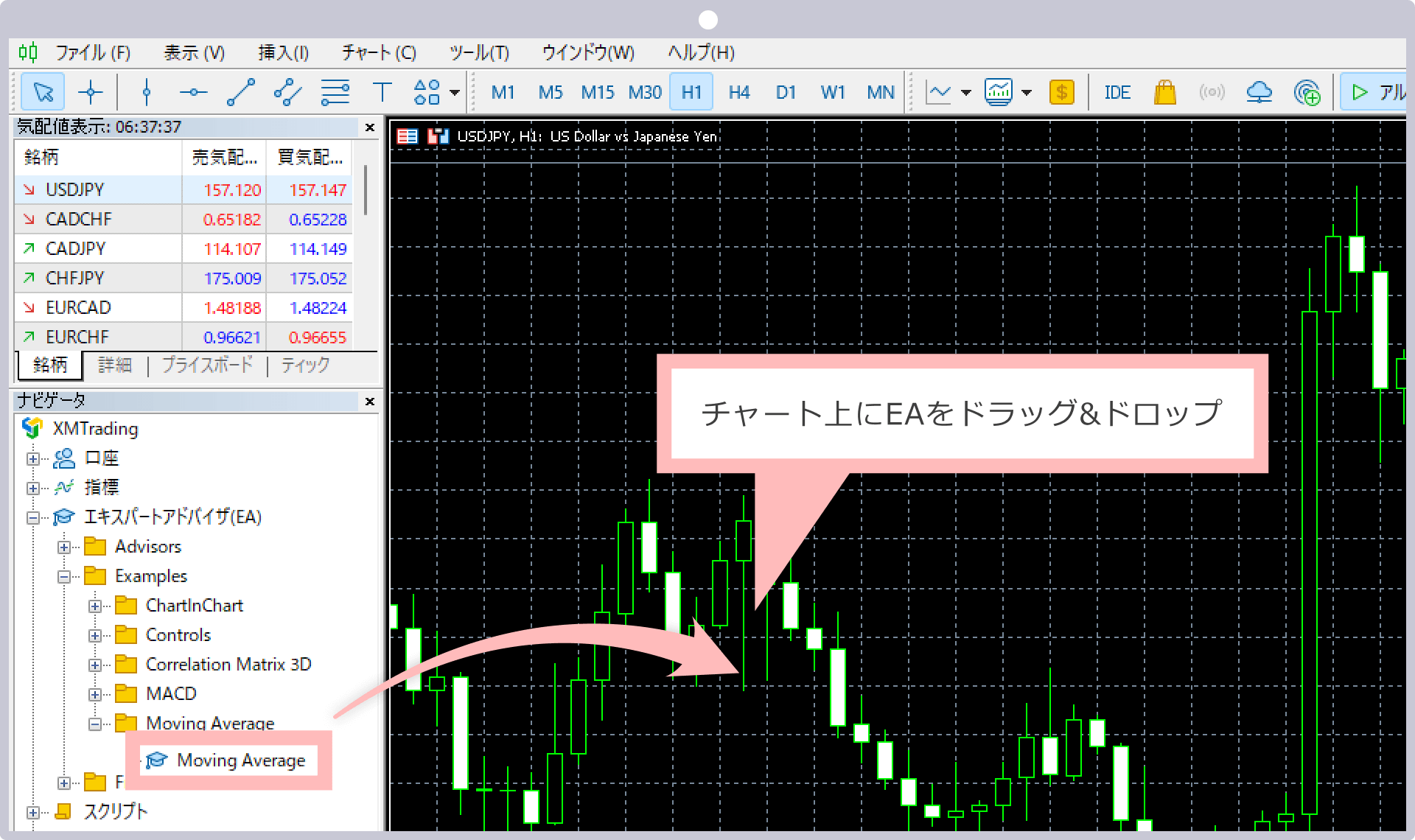
Drag EA onto Chart
Drag 'DONCHIAN_ENGINE_EA' from the Navigator onto the USDJPY chart.
- 4
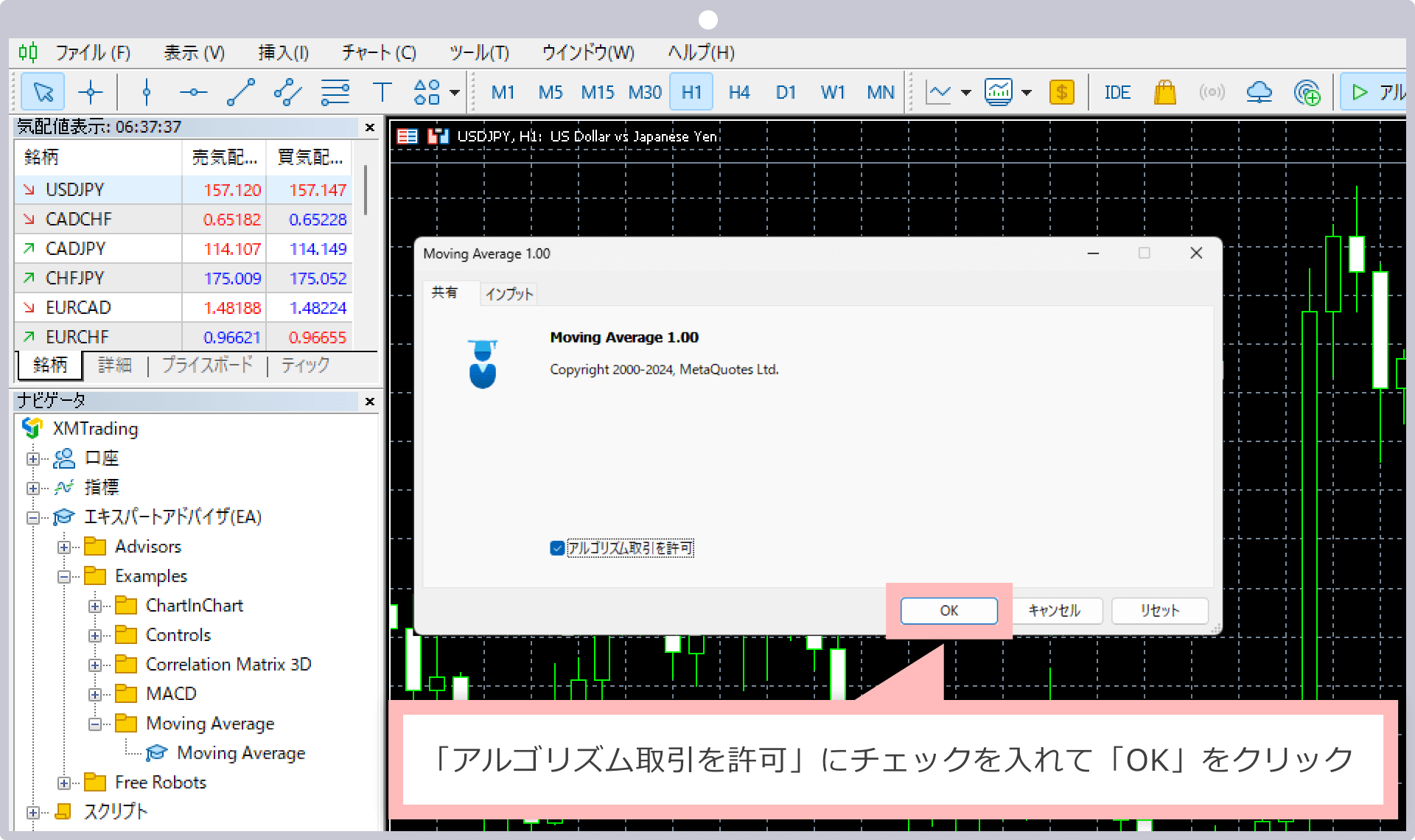
Check Settings Dialog
The settings dialog will open. In the 'Common' tab, confirm 'Allow Automated Trading' is checked, then click 'OK'.
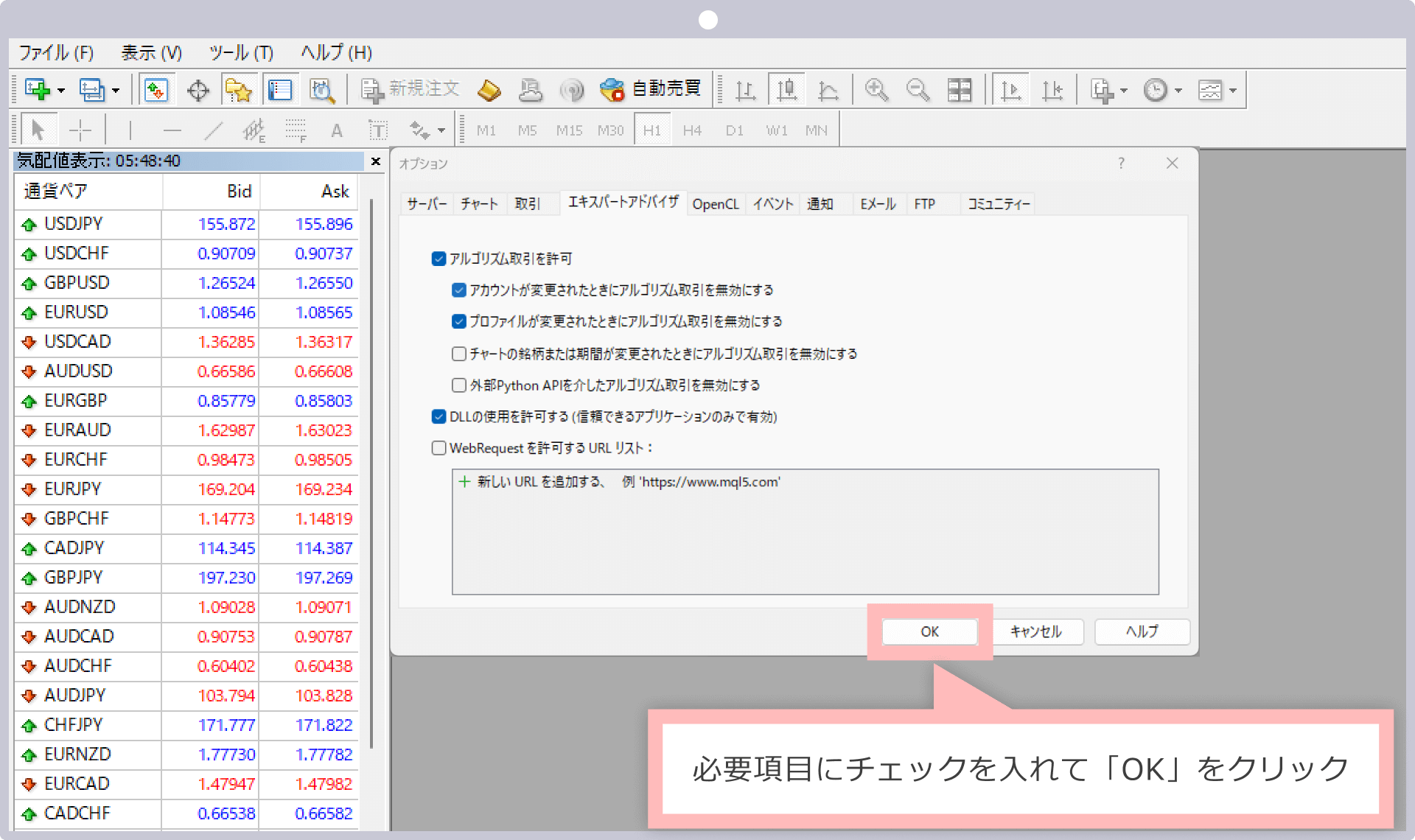
Check 'Allow Automated Trading' - 5
Turn ON Auto Trading Button
Confirm that the 'Auto Trading' button in the MT5 toolbar is green. If the EA name appears in the upper right of the chart, it's running.
EA name and green auto trading button visible in upper right
STEP 4 | Parameter Settings
You can configure values in the 'Input Parameters' tab of the EA's properties dialog. For beginners, it's recommended to use default values.
| Parameter | Default | Recommended |
|---|---|---|
| RiskPercent | 0.5 | 0.5 (beginners: leave as is) |
| FixedLot | 0.0 | 0 (keep auto sizing) |
| HoldBars | 60 | 60 (no change) |
| Symbol | USDJPY | USDJPY (symbol auto-detected) |
See the EA detail page for full parameter details.
STEP 5 | Verify Operation
Let's verify that the EA is running correctly.
- ✓EA name (DONCHIAN_ENGINE_EA) is displayed in the upper right of the chart
- ✓The 'Auto Trading' button in the toolbar is green
- ✓No error messages in the 'Experts' tab
- ✓Always test on a demo account before using a live account
✅ EA Setup Checklist
- □Copied EA file (.ex5) to Experts folder
- □Auto trading is enabled in MT5
- □Opened chart with correct broker symbol name
- □Attached EA to chart
- □Set parameters and clicked OK
- □Smiley face icon (:-)) is shown on chart
- □No errors in Experts tab