
Complete Guide to Installing and Configuring an EA in MT5
Contents
- Quick Steps (7 Steps)
- What You Need Before Installing an EA
- Step 1: Place the EA File in the Correct Folder
- Step 2: Compile the EA (.mq5 File)
- Step 3: Attach the EA to a Chart
- Step 4: Configure the EA Settings
- Step 5: Confirm MT5's Automated Trading Switch is On
- How to Run a Backtest
- Common Issues and How to Fix Them
- Important Notes While the EA Is Running
- Summary
- Related Pages
Complete Guide to Installing and Configuring an EA in MT5 [Beginner's Guide]
This guide walks you through every step of adding an Expert Advisor (EA) to MetaTrader 5 (MT5) so you can start automated trading. Even if this is your first time, following these steps will get you up and running without issues.
Quick Steps (7 Steps)
Start by working through the steps below in order. Each step is explained in detail in the sections that follow.
- In MT5, go to "File" → "Open Data Folder" and place the EA file (
.ex5or.mq5) inMQL5/Experts/ - Only for a
.mq5file: open it in MetaEditor (F4), compile it (F7) and confirm "0 error(s)" (not needed for an.ex5file) - Open a chart for the currency pair and timeframe you want to trade, then drag and drop the EA from "Expert Advisors" in the "Navigator" onto the chart
- In the "Common" tab of the settings dialog, check "Allow automated trading"
- In the "Inputs" tab, beginners can leave the default settings and click OK
- Turn on the "Automated Trading" button in the toolbar (green)
- If the EA name and a smiley face (😊) appear in the upper-right corner of the chart, the EA is running. Before going live, verify its behavior with a backtest (this site's free EAs don't run on demo accounts)
📧 Free 8-email course + subscriber-only pack of 13 MT5 indicators
Right after you sign up, you get a download link for a subscriber-only pack of our 13 MT5 indicators: compiled files (.ex5), source code and a setup guide. Then 8 emails on algo-trading essentials, reading backtests correctly and choosing a broker (one a day for the first 5 days, then 7, 14 and 30 days after signing up). You also get notified before each price rise of the versions sold on the MQL5 Market (launch pricing that steps up as copies sell). Our EAs are free on this site with a live account at a partner broker.
* Privacy strictly protected. You can unsubscribe at any time.
What You Need Before Installing an EA
- A PC with MetaTrader 5 (MT5) already installed
- A
.mq5or.ex5file (the EA program file) - An MT5-compatible trading account (XM Trading, Exness, HFM, etc.)
.mq5 is the source code format; .ex5 is the compiled executable. EAs distributed on fxea365.com come as a zip containing the compiled .ex5, in which case the compilation in Step 2 is not needed. If you received a .mq5 file, you will need to compile it inside MT5.
Step 1: Place the EA File in the Correct Folder
Open MT5 and click "File" → "Open Data Folder" in the menu bar.
Inside the folder that opens, copy your .mq5 file to the following path:
MQL5 > Experts > [place your file here]
You can create a subfolder to keep things organized (e.g., MQL5/Experts/fxea365/).
Important: Do not place the file in the "Indicators" or "Scripts" folders. EAs must always go in the "Experts" folder.
Step 2: Compile the EA (.mq5 File)
- From the MT5 menu, go to "Tools" → "MetaEditor" (or press F4)
- In the MetaEditor, find your
.mq5file in the left-side Navigator and double-click it to open - Click the "Compile" button in the menu (or press F7)
- If the Errors tab at the bottom shows "0 error(s), 0 warning(s)", the compilation was successful
Once compilation is complete, an .ex5 file will be generated in the same folder. This is the actual executable EA.
If you received only an .ex5 file, skip this step.
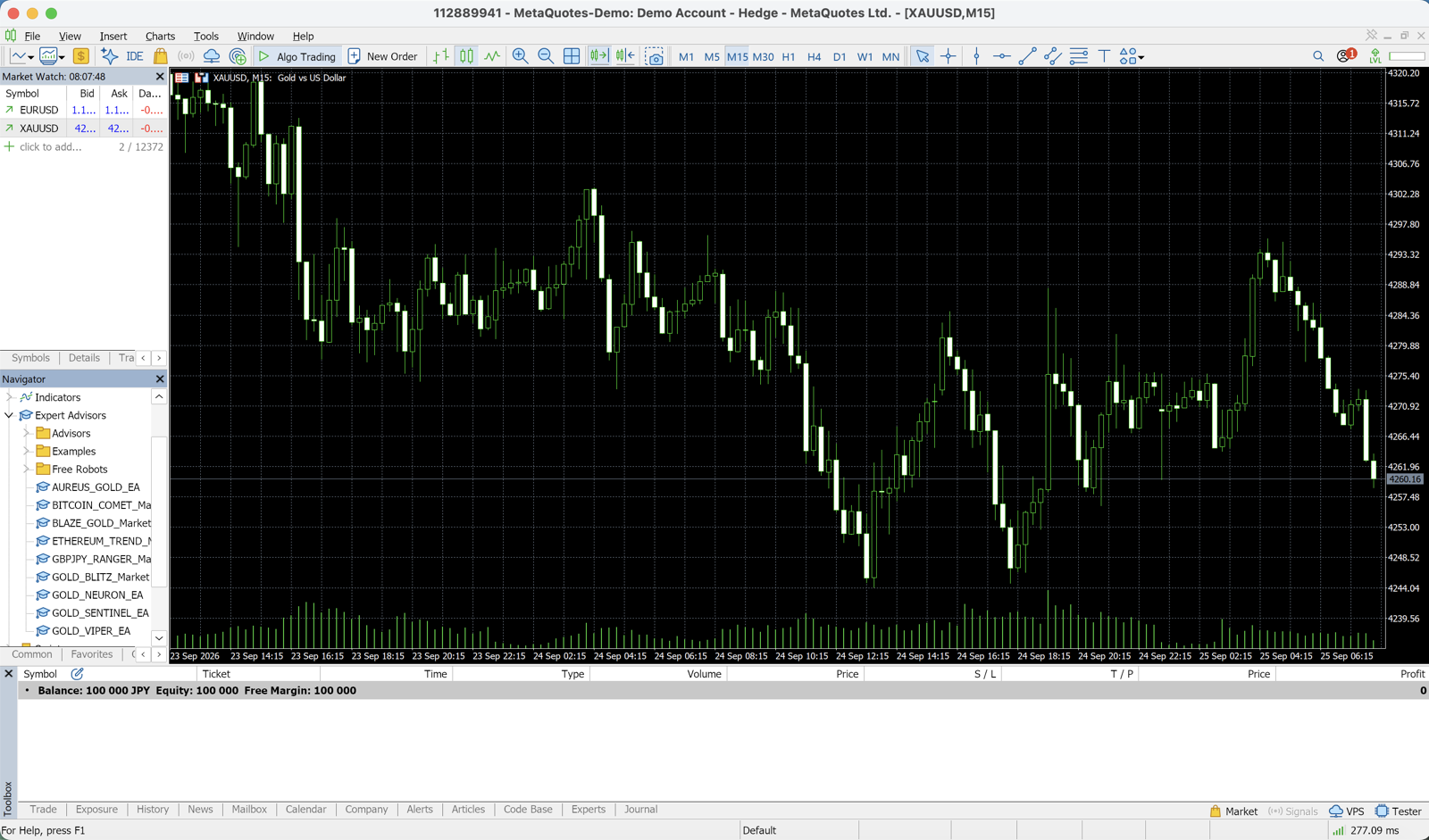
Step 3: Attach the EA to a Chart
- Return to MT5 and open a chart for the currency pair and timeframe you want to trade
- In the left-side "Navigator" panel, expand "Expert Advisors"
- Drag and drop your EA onto the chart (or double-click it)
- A settings dialog will appear
Step 4: Configure the EA Settings
The settings dialog has three main tabs.
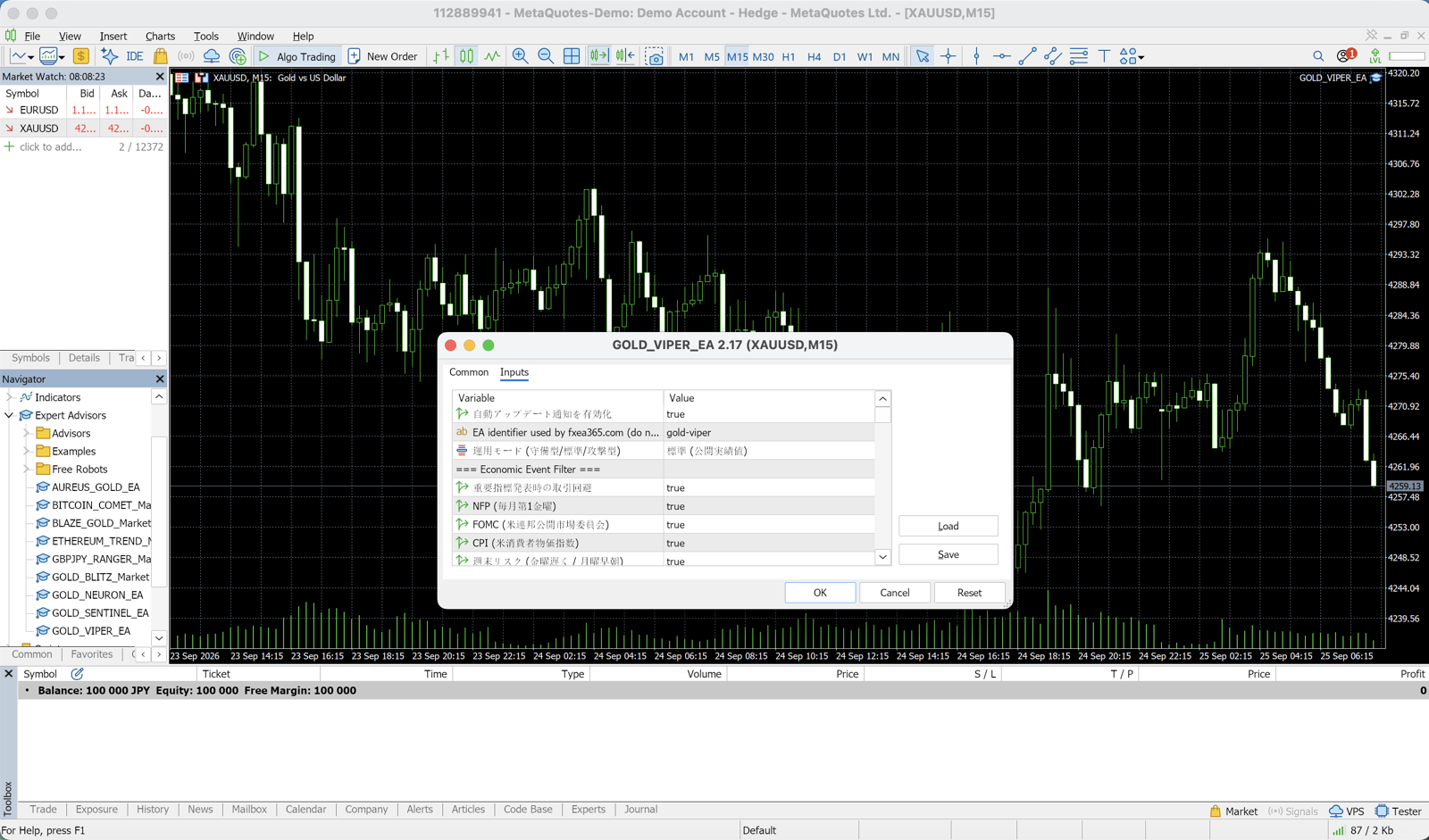
"Common" Tab
| Setting | Recommended |
|---|---|
| Allow automated trading | Check this box |
| Allow DLL imports | Depends on the EA (usually not required) |
| Allow import of external experts | Depends on the EA |
If "Allow automated trading" is not checked, the EA will not place any trades. This is the most common setup mistake.
"Inputs" Tab
This tab lets you fine-tune how the EA behaves. Key parameters include:
| Parameter | Meaning | Recommended for Beginners |
|---|---|---|
UseFixedLot | Use a fixed lot size | false (auto-calculate by risk %) |
RiskPercent | Risk per trade as a percentage | 0.5 to 1.0 |
FixedLot | Fixed lot size | 0.01 |
MaxSpread | Maximum allowed spread (pips) | 3.0 |
MagicNumber | EA identifier number | Leave as default |
Beginners are generally advised to leave all settings at their default values.
"Dependencies" Tab
No changes are needed here under normal circumstances.
Step 5: Confirm MT5's Automated Trading Switch is On
Attaching the EA to a chart is not enough on its own. Make sure the "Automated Trading" button (green play button) in the MT5 toolbar is turned on.
- Button is green → Automated trading is ON (EA is active)
- Button is grey → Automated trading is OFF (EA will not trade)
If the EA name and a smiley face icon appear in the upper-right corner of the chart, the EA is running correctly.
How to Run a Backtest
It is strongly recommended to run a backtest to verify the EA's behavior before going live.
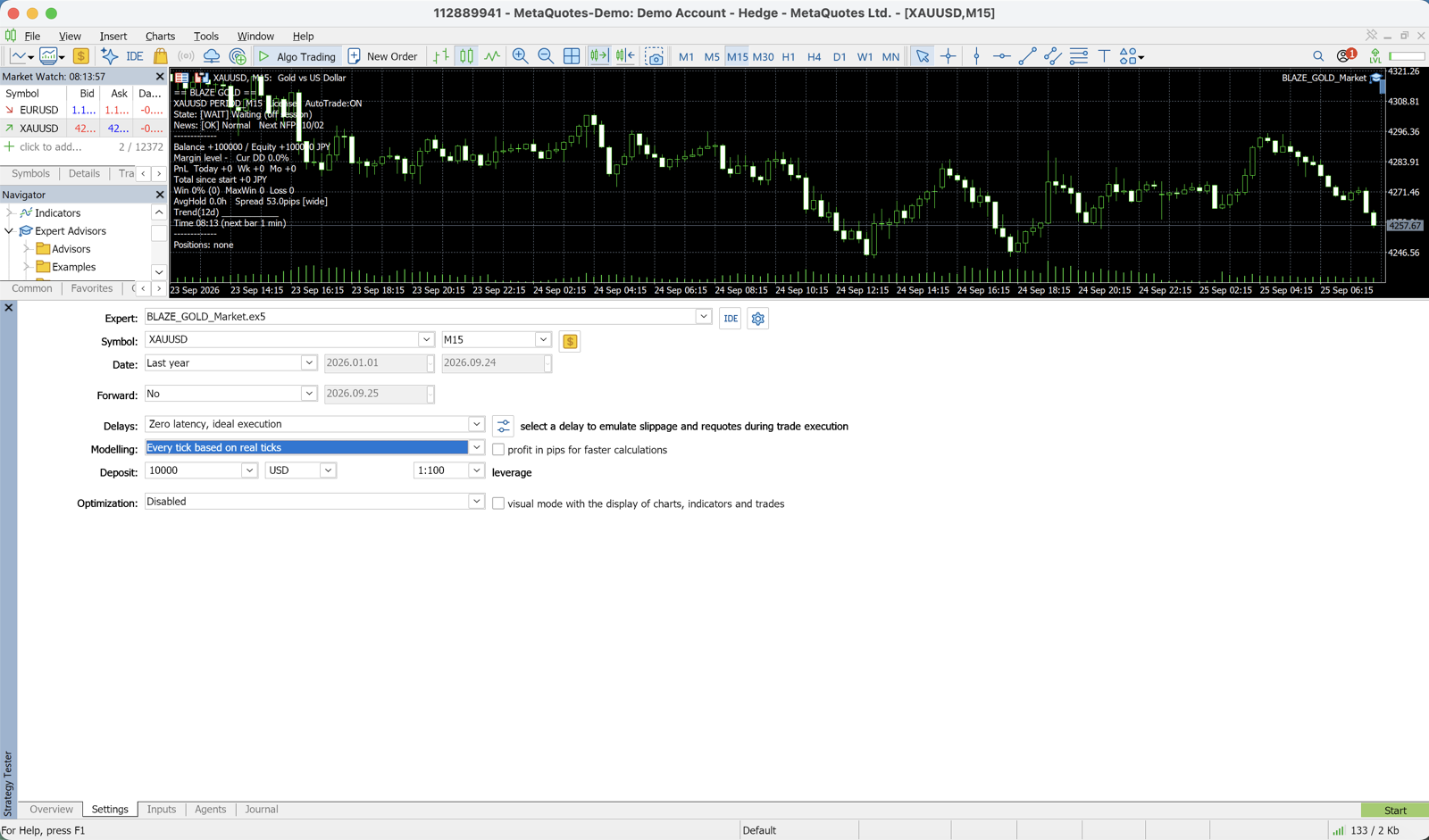
- In MT5, go to "View" → "Strategy Tester" (or press Ctrl+R)
- In the "Expert Advisor" field, select your EA
- Set the currency pair, timeframe, and date range
- Under Model, select "Every tick (slowest method based on all available least timeframes)"
- Click "Start"
For detailed backtest configuration instructions, see the MT5 Backtest Complete Guide.
Common Issues and How to Fix Them
The EA Is Not Placing Trades
| Cause | Fix | |
|---|---|---|
| Cause 1 | The "Automated Trading" button is turned off | Check the toolbar and turn it on |
| Cause 2 | "Allow automated trading" was not checked when attaching the EA to the chart | Double-click the EA on the chart → go to the "Common" tab → verify the checkbox |
| Cause 3 | The spread exceeds the MaxSpread setting | Increase the MaxSpread parameter (e.g., to 5.0) |
| Cause 4 | A time filter is active and the current time is outside the allowed window | Check the UseTimeFilter parameter |
Compilation Error
Cause: MT5 is outdated or a required library is missing → Update MT5 to the latest version
If these do not solve the problem, see the article that matches your symptom:
- MT5 EA Not Working or Not Placing Trades
- MT5 AutoTrading Disabled by Client (10027): Fix Algo Trading
- MT5 Error Codes Explained: 10027, 10030, 10016 & More
Important Notes While the EA Is Running
- Using a VPS is recommended: When your PC shuts down, the EA stops too. A VPS is required to keep the EA running 24 hours a day. Compare recommended VPS options
- Watch for swap charges: Depending on the currency pair, overnight swap points may apply
- Check the EA regularly: Make it a habit to review the MT5 Experts log daily
- Test small first: Run the EA on a demo account or at the minimum lot for at least two weeks before going live (this site's free EAs don't run on demo accounts, so use the minimum lot on your live account)
Summary
Installing an EA in MT5 comes down to seven steps:
- Place the
.mq5file in theMQL5/Experts/folder - Compile it in MetaEditor (generates the
.ex5file) - Drag and drop it onto the chart to attach it
- In the "Common" tab of the settings dialog, check "Allow automated trading"
- Configure the parameters (beginners should use defaults)
- Turn on MT5's "Automated Trading" button
- If the EA name and a smiley face (😊) appear in the upper-right corner of the chart, the EA is running. Before going live, verify its behavior with a backtest and on a demo account
This site also offers EAs that you can download for free. You can find them in the EA List & Rankings.
Related Pages
- EA List & Rankings — Compare EAs with backtest results
- MT5 Backtest Setup Guide — How to use the Strategy Tester
- Moving from Demo to Live Trading — When and how to make the switch
- Recommended VPS Comparison — Choosing a VPS for 24/7 operation
- Risk Management Basics — How to size your lots
Related
📧 Free 8-email course + subscriber-only pack of 13 MT5 indicators
Right after you sign up, you get a download link for a subscriber-only pack of our 13 MT5 indicators: compiled files (.ex5), source code and a setup guide. Then 8 emails on algo-trading essentials, reading backtests correctly and choosing a broker (one a day for the first 5 days, then 7, 14 and 30 days after signing up). You also get notified before each price rise of the versions sold on the MQL5 Market (launch pricing that steps up as copies sell). Our EAs are free on this site with a live account at a partner broker.
* Privacy strictly protected. You can unsubscribe at any time.
Have a question about EAs or FX?
You can post it on the Nattzy trading forum (free sign-up). Questions beyond this article are welcome too — EA settings, choosing a broker and more.
Ask on Nattzy ↗