
MT5 Error Codes — Causes and Fixes When the EA Stops Trading
Last updated: 2026-05-20 | Estimated reading time: 15 min
"I installed the EA but it's not trading" or "order errors suddenly started appearing" — these situations are inevitable in EA operation. MT5 leaves clues in its logs. This article explains the most common error causes, how to fix them, and how to read the logs.
Contents
Three things to check first
When an EA behaves unexpectedly, start with these three checks. Most issues are resolved here.
Is "Algo Trading" enabled?
Check the "Algo Trading" button in the toolbar and the smiley-face icon in the top-right corner of the chart. A frowning face means automated trading is disabled.
Is MT5 connected to the broker?
Check that the connection indicator in the bottom-right of the screen is green. If it is red or shows "No connection", try logging in again or check your network.
Is trading allowed in the EA's settings?
Open the EA's Properties and go to the Common tab. Confirm that "Allow Algo Trading" is checked.
Reading the logs — Journal and Expert tabs
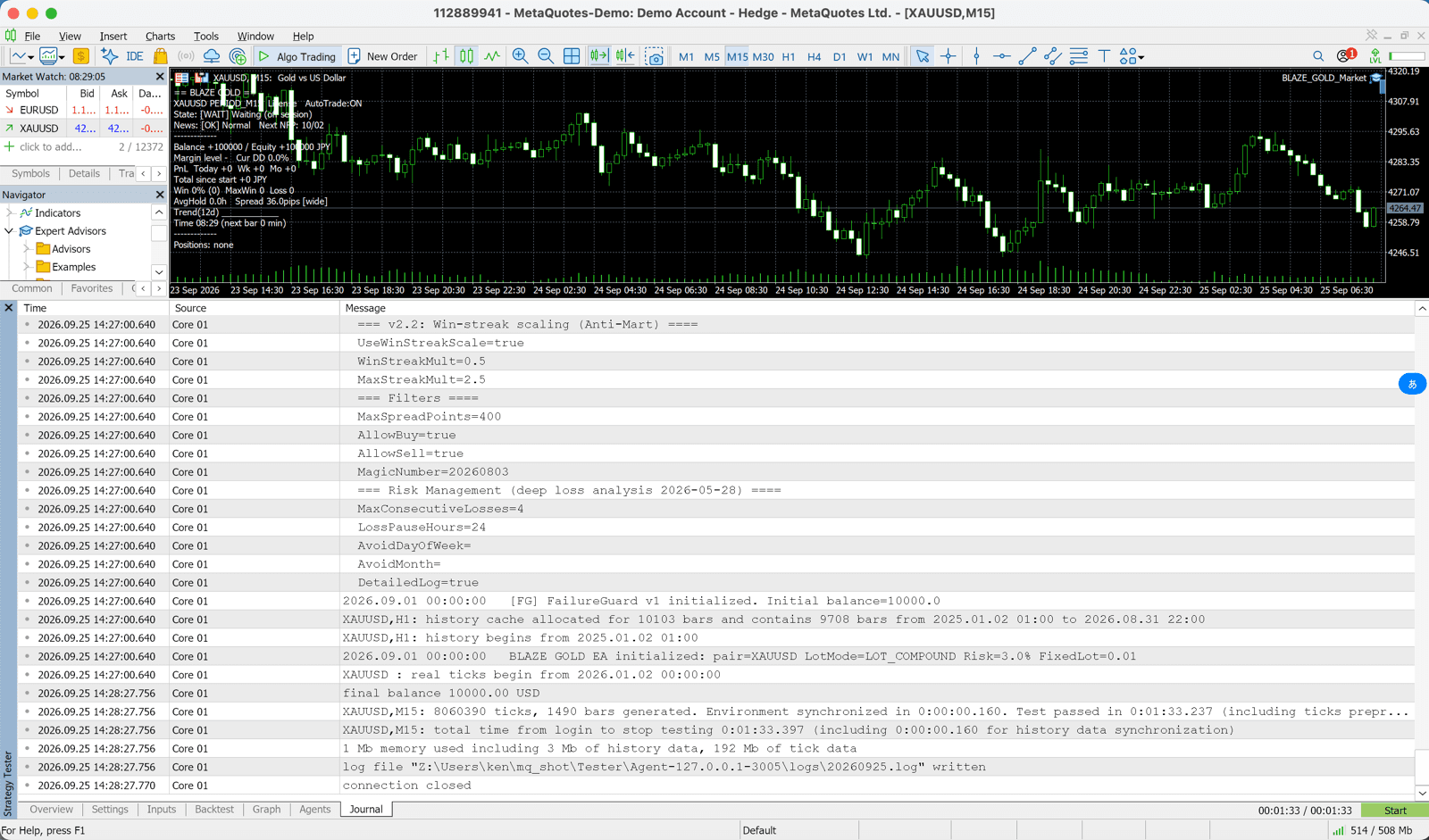
The Terminal window at the bottom of MT5 records what is happening. Use these two tabs depending on what you need to find:
| Tab | What it records |
|---|---|
| Expert | The EA's own activity log — entry decisions, order results, errors and messages output by the EA |
| Journal | MT5's system log — connection status, algo trading enabled/disabled, communication errors with the server |
To find out why an EA is not trading, check the Expert tab. To check whether MT5 or the EA is running at all, check the Journal tab. The key is to read the entries around the date and time when the problem occurred.
Common order error codes
When an order fails, an error code appears in the EA's log. The most common ones are listed below.
| Error | Meaning | What to do |
|---|---|---|
| 10004 Requote | The quoted price changed and the order could not be filled | Usually temporary. The EA's retry logic will often recover automatically |
| 10006 Request rejected | The server rejected the order | Check account status, trading hours, and the symbol |
| 10016 Invalid stops | SL/TP is too close to the current price or contains an invalid value | Make sure SL/TP are placed beyond the broker's minimum stop level |
| 10019 Insufficient funds | Not enough margin to open the position | Reduce the lot size or deposit more funds |
| 10027 Algo trading disabled | Algorithmic trading is turned off | Enable the "Algo Trading" button |
| 10018 Market closed | An order was placed while the market was closed | Verify that trading hours are open. This often happens with daily-timeframe EAs placing orders at rollover |
Why an EA might stop trading (without an error)
If no error appears yet the EA is not trading, consider the following causes.
Entry conditions have not been met yet
An EA only places orders when its conditions are satisfied. H4 and D1 EAs with no trades for several days to several weeks are completely normal. First confirm the EA's expected trade frequency.
Spread is above the maximum limit
Many EAs stop new entries when the spread exceeds MaxSpread. Spreads widen during early-morning sessions and around news releases, so the EA may pause only during those windows.
A filter has suspended trading
Safety mechanisms such as the economic news filter, trading hours filter, consecutive-loss stop, or daily loss limit may have triggered. The reason will appear in the log.
Symbol name mismatch
An EA designed for GOLD attached to an XAUUSD chart, for example, may not work due to a symbol name mismatch. Confirm the exact symbol name used by your broker.
Wrong timeframe or insufficient historical data
Attaching the EA to the wrong timeframe chart, or a lack of sufficient historical data, can also prevent trading.
Systematic troubleshooting when errors persist
If you cannot identify the cause, work through the following steps in order.
Identify the error in the logs
In the Expert / Journal tab, note the date, time, error code, and message.
Try to reproduce the problem on a demo account
Run the same settings on a demo account and see whether the problem occurs. If it does, the issue is with the EA or its settings. If it does not, the issue is with the account or the connection. Note: our free EAs do not run on demo accounts. Check them in the Strategy Tester, then start on your registered live account with the minimum lot (versions bought on the MQL5 Market do run on demo accounts).
Reset settings one by one to isolate the cause
Return filters and parameters to their default values one at a time to identify which one is causing the problem.
Restart MT5 and the EA
Restarting MT5 or re-attaching the EA to the chart can clear temporary issues. On a VPS, a reboot may also help.
If unresolved, contact the EA provider
Include the error details from the log, the symbol, timeframe, and your settings when contacting the EA provider or your broker.
🖥️ Stabilize your trading environment with a VPS
Many problems caused by connection drops and reboots can be prevented by running your EA on a VPS.
Read the VPS setup guide →