
Complete Guide to Running MT5 EAs on XMTrading
Contents
- Can You Use EAs on XMTrading?
- Step 1: Open an Account (approx. 10 minutes)
- Step 2: Install MT5 (approx. 5 minutes)
- Step 3: Install Your EA File (approx. 3 minutes)
- Step 4: Attach the EA to a Chart (approx. 5 minutes)
- Step 5: Enable Automated Trading
- Troubleshooting Checklist: EA Won't Run
- Running on a VPS
- Setup Complete: Final Checklist
- FAQ
Complete Guide to Running MT5 EAs on XMTrading (2026 Edition)
"I want to run an EA, but I have no idea where to start with XM" — this article was written for exactly that situation.
We walk through every step with screenshots: account opening → MT5 installation → EA file placement → automated trading ON. The whole process takes about 30 minutes the first time.
What you'll learn in this article
- Opening an XMTrading account (including how to enter a partner code)
- Choosing the right account type — KIWAMI, Standard, and others
- Downloading and logging into MT5
- Installing EA files and attaching them to a chart
- Common reasons an EA won't run — and how to fix them
Can You Use EAs on XMTrading?
Short answer: Yes, without restrictions. Scalping, martingale/averaging-down, and hedging strategies are all permitted.
That said, trading costs vary by account type. Choosing the right account for your strategy before you start can make a meaningful difference in long-term profitability.
| Account Type | Spread | Commission | Best For |
|---|---|---|---|
| KIWAMI | Tight | None | XAUUSD / high-frequency EAs |
| Standard | Moderate | None | Beginners / small starting capital |
| Micro | Moderate | None | Functionality testing / demo verification |
| Zero | Ultra-tight | Yes | Ultra-high-frequency scalping |
For XAUUSD (Gold) EAs, the KIWAMI account offers the best cost efficiency. That said, starting with a Standard account to verify your EA's behavior is a perfectly reasonable approach.
📧 Free 8-email course + subscriber-only pack of 13 MT5 indicators
Right after you sign up, you get a download link for a subscriber-only pack of our 13 MT5 indicators: compiled files (.ex5), source code and a setup guide. Then 8 emails on algo-trading essentials, reading backtests correctly and choosing a broker (one a day for the first 5 days, then 7, 14 and 30 days after signing up). You also get notified before each price rise of the versions sold on the MQL5 Market (launch pricing that steps up as copies sell). Our EAs are free on this site with a live account at a partner broker.
* Privacy strictly protected. You can unsubscribe at any time.
Step 1: Open an Account (approx. 10 minutes)
1-1. Register via Affiliate Link
When you open an account through our site, your partner code is applied automatically — no manual entry required.
If you go directly to the XM website to register, enter 26388 in the partner code field described later in Step 1-5.
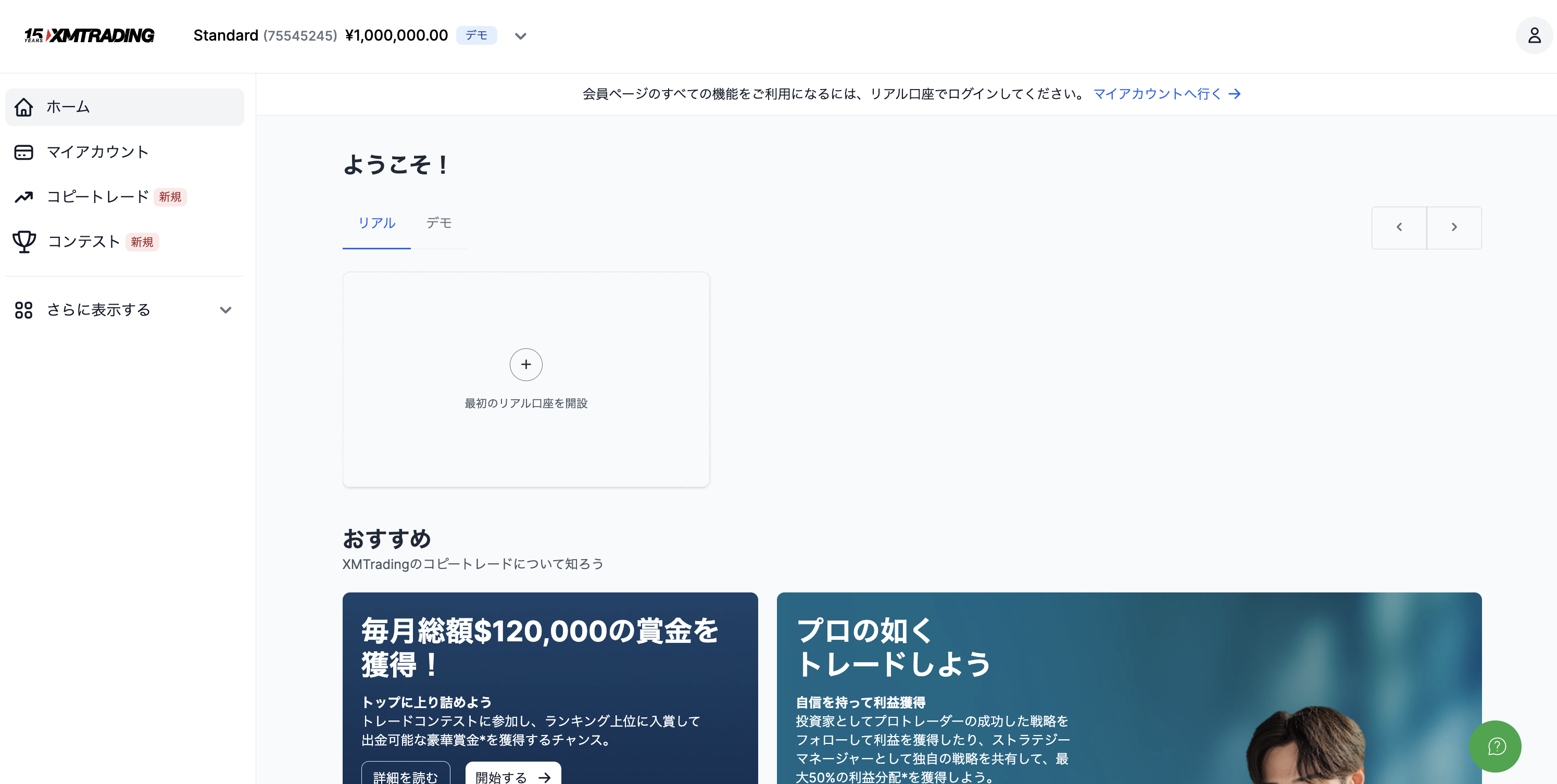
1-2. Log In to Your Member Dashboard
After registering, log in to your member dashboard (My Page). Here is what the screen looks like on first login.
1-3. Open an Additional Account
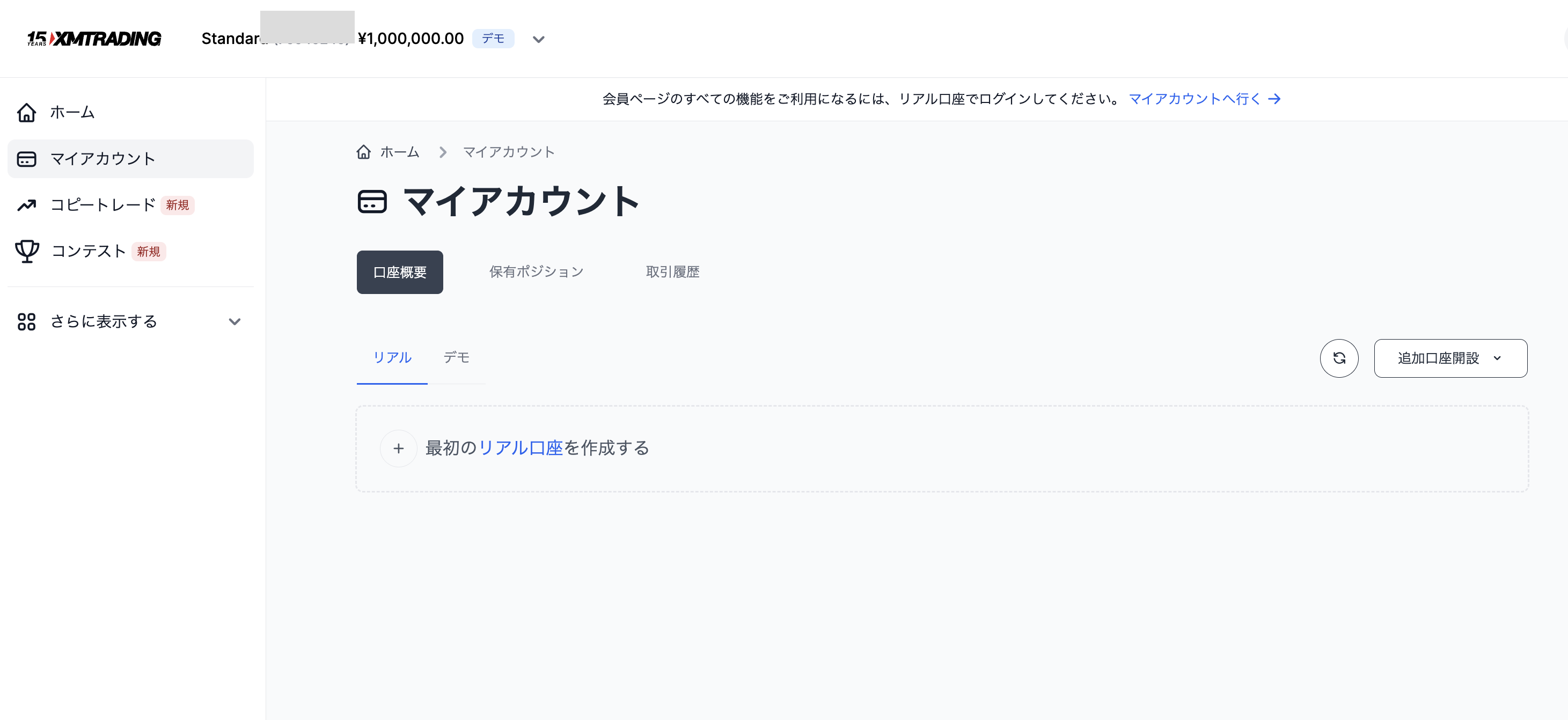
Click "My Account" → "Open Additional Account."
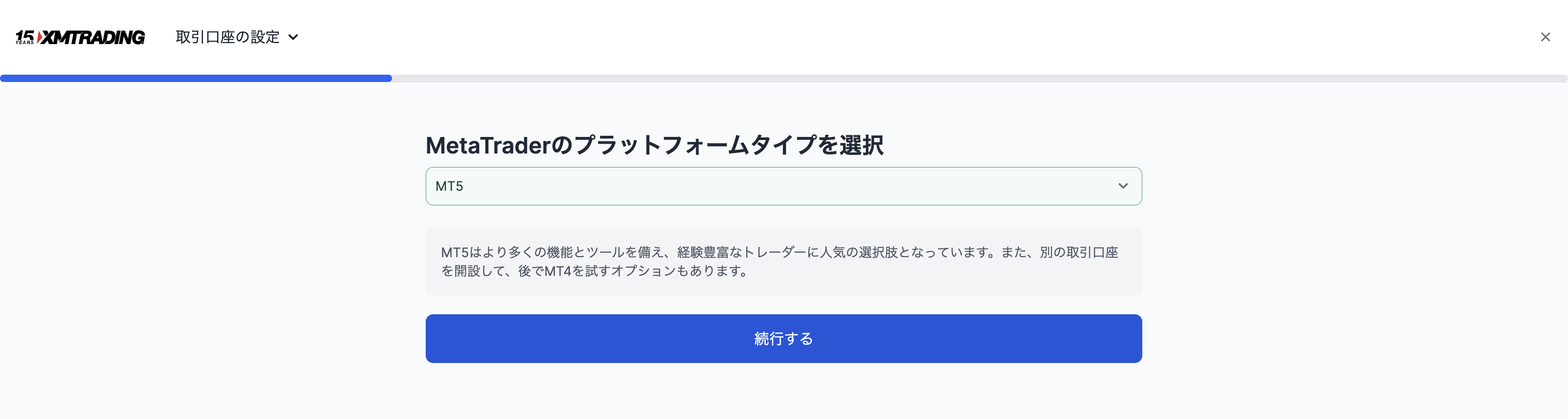
First, select MT5 as your platform and click "Continue."
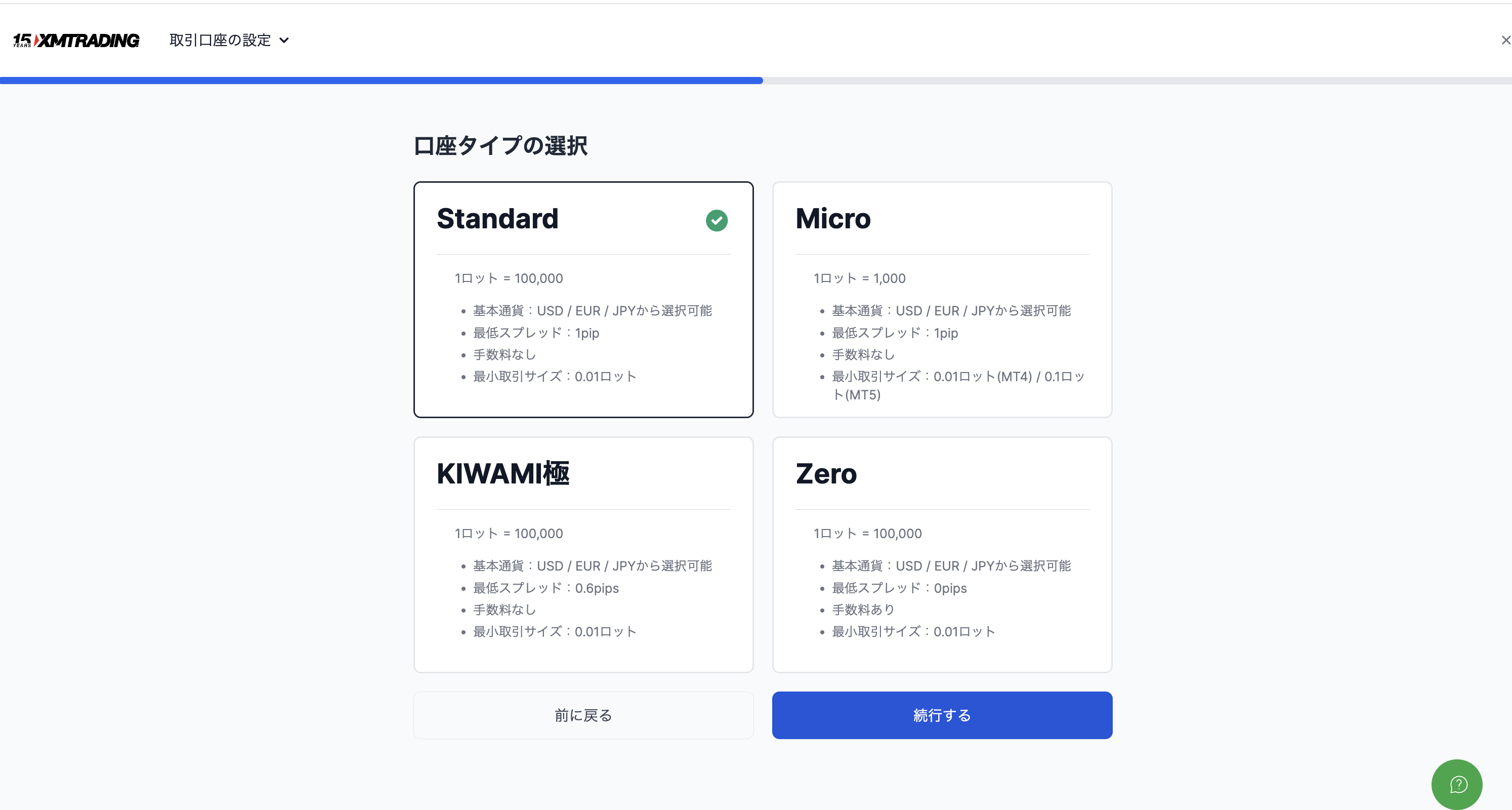
1-4. Select Your Account Type
Choose from four options. We recommend the KIWAMI account for XAUUSD EAs. Standard is fine if you are new or just want to try things out.
1-5. Customize Your Account
Set your leverage, base currency, and account name. In the partner code field, enter 26388 (not required if you registered via our site link).
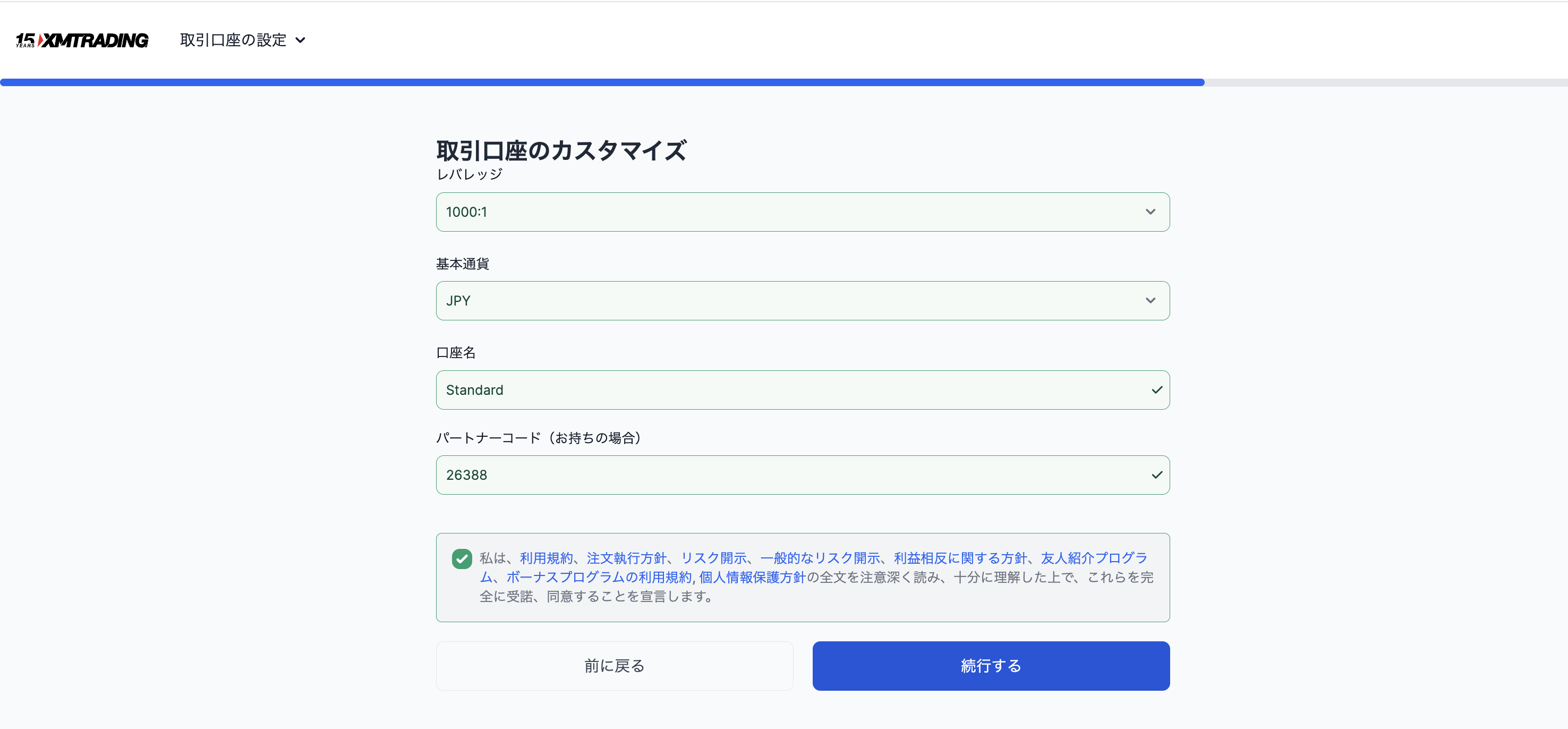
Recommended settings:
- Leverage: 1000:1 (adjustable later)
- Base Currency: USD (or your preferred currency)
- Partner Code:
26388
Check the terms and conditions box and click "Continue."
1-6. Set Your MT5 Password
This password is used when logging into MT5. Write it down somewhere safe.
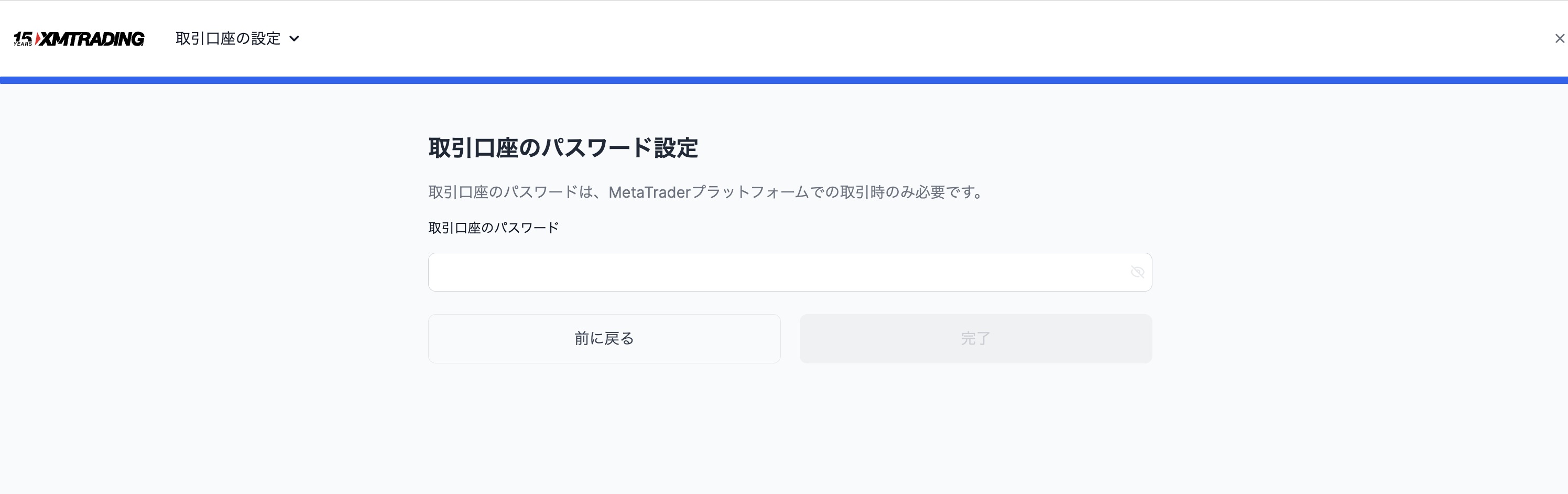
After clicking "Done," your MT5 login ID and server name will be sent to your registered email address.
Step 2: Install MT5 (approx. 5 minutes)
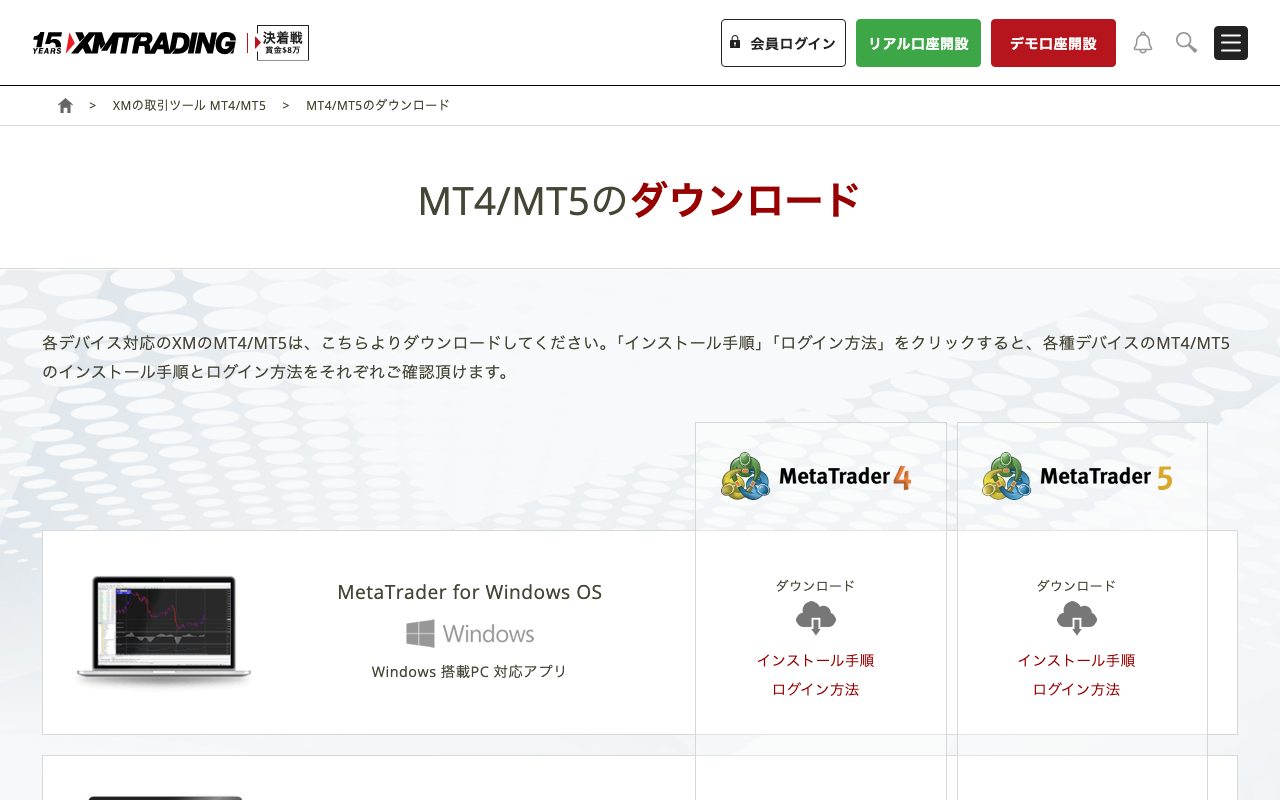
2-1. Download MT5
Download MT5 from your XM member dashboard or directly from the MetaQuotes official website. The Windows version is strongly recommended. Some EAs may not run correctly on the Mac version.
2-2. Log In
Launch MT5, then go to "File" → "Open an Account" to log in.
| Field | What to Enter |
|---|---|
| Login ID | The number in your account confirmation email |
| Password | The password you set in Step 1-6 |
| Server | The server name in your email (e.g., XMTrading-MT5 3) |
Common mistake: accidentally trying to log in with an MT4 server. Make sure to select a server that includes "MT5" — for example, "XMTrading-MT5 3."
Step 3: Install Your EA File (approx. 3 minutes)
3-1. Place the EA File in the Correct Folder
- In the MT5 top menu, click "File" → "Open Data Folder"
- Copy the EA file (
.ex5) into theMQL5→Expertsfolder - Restart MT5
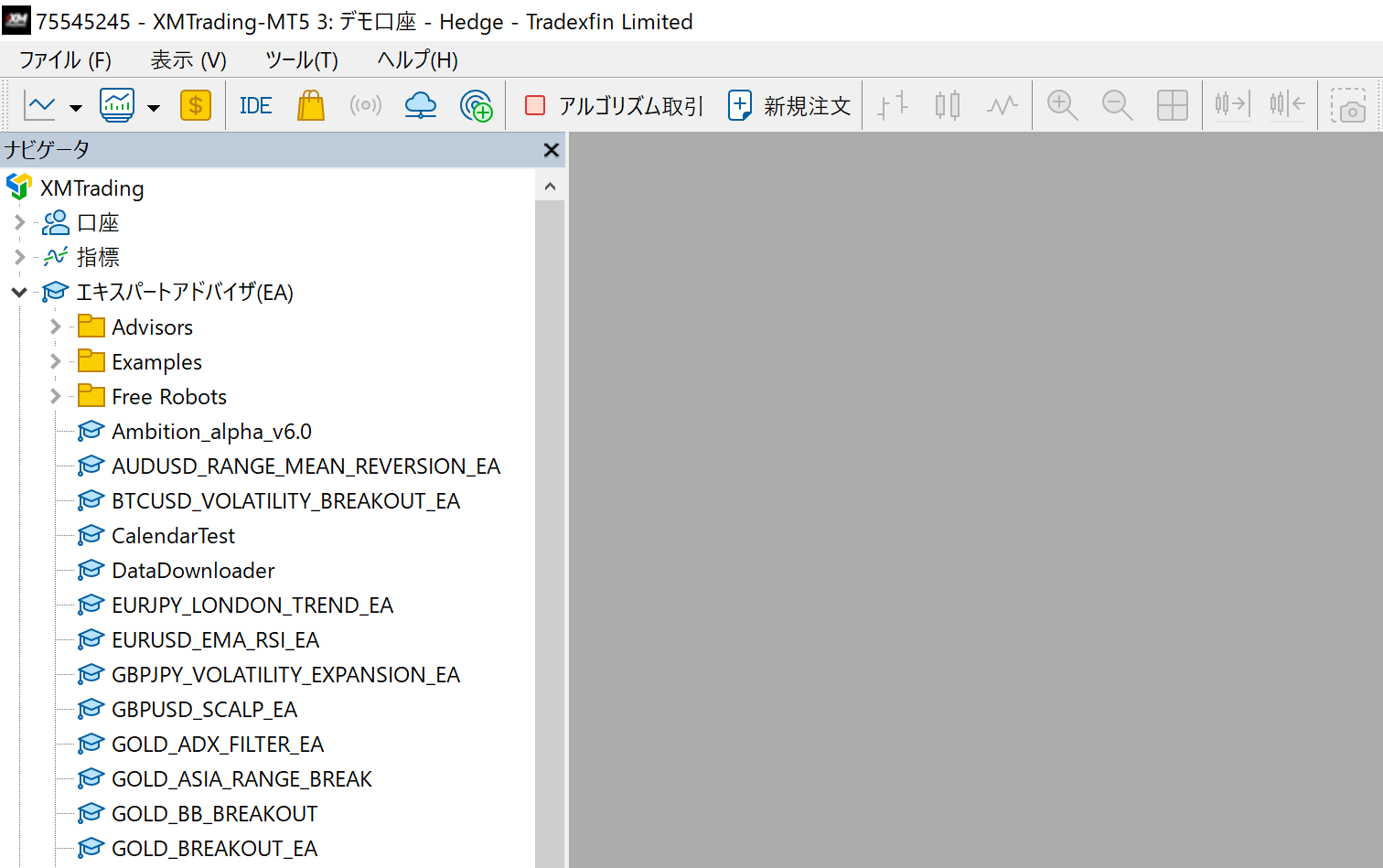
3-2. Confirm in the Navigator Panel
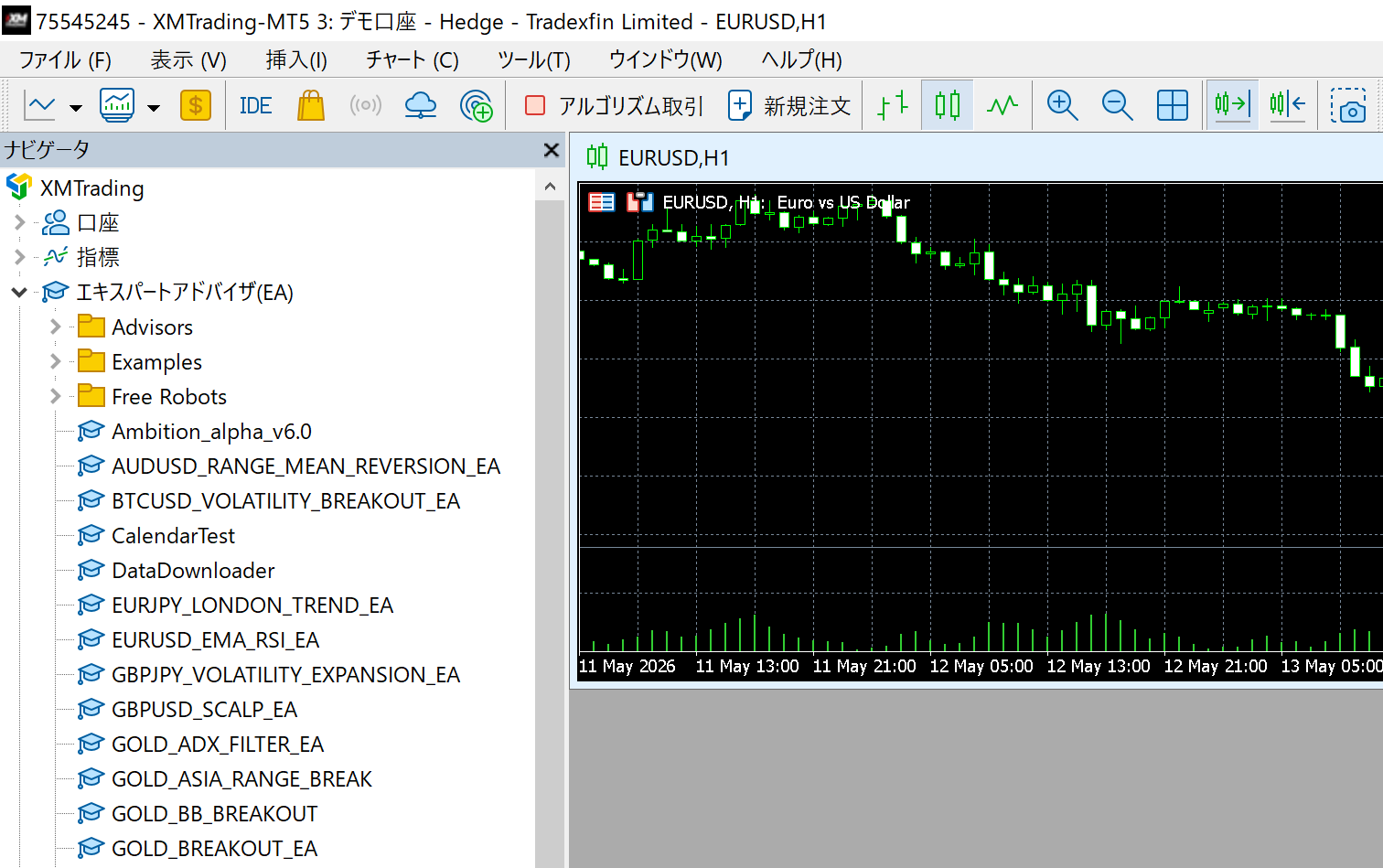
After restarting, look in the left-hand "Navigator" panel under "Expert Advisors." If you see your EA name listed there, the installation was successful.
Step 4: Attach the EA to a Chart (approx. 5 minutes)
4-1. Match the EA to the Correct Chart
Every EA is designed to run on a specific symbol and timeframe. For EAs on this site, the correct symbol and timeframe are listed on each EA's product page.
Example: GOLD VIPER → XAUUSD (GOLD) chart, M30 (30-minute timeframe)
On XM, XAUUSD is displayed as "GOLD." When opening a chart, search for "GOLD." Searching for "XAUUSD" may return no results.
4-2. Drag and Drop the EA onto the Chart
Drag the EA name from the Navigator panel onto the chart. When the settings window opens, confirm the following.
Items to check in the settings window:
- "Common" tab → Check "Allow automated trading" ✓
- "Common" tab → Check "Allow DLL imports" ✓ (depending on the EA)
- "Inputs" tab → Configure parameters such as RiskPercent and MagicNumber
Step 5: Enable Automated Trading
Check that the "Automated Trading" button in the MT5 toolbar is green.
If the EA icon in the upper-right corner of the chart shows a smiley face, the EA is running normally. A grey "×" icon means automated trading is disabled.
Troubleshooting Checklist: EA Won't Run
| Symptom | Cause | Fix |
|---|---|---|
| "Automated Trading" button in toolbar is grey | Automated trading is OFF | Click the button to turn it ON |
| EA icon on chart shows "×" | EA-level setting is OFF | Right-click chart → EA Properties → enable automated trading |
| "GOLD not found" error | Symbol name mismatch | Change the Symbol parameter in the EA to "GOLD" |
| No entries (no error messages) | Market conditions not yet met | This is normal — the EA will enter automatically when conditions are met |
| "Trade is not allowed" | Insufficient margin or market is closed | Add funds or check the trading hours |
Running on a VPS
When you shut down your PC, the EA stops too. To keep it running 24 hours a day, you need a VPS (Virtual Private Server).
XMTrading occasionally offers a free VPS to clients who maintain an equity of $500 or more and trade at least 5 lots per month (conditions may change). For details, see the VPS information page.
Setup Complete: Final Checklist
- XMTrading account opened (partner code
26388entered) - MT5 downloaded and logged in successfully
- EA file placed in
MQL5/Experts - After restarting MT5, EA name appears in the Navigator
- EA dragged onto chart; "Allow automated trading" enabled in settings window
- "Automated Trading" toolbar button is green
- EA icon in the upper-right corner of the chart shows a smiley face
Once all boxes are checked, your EA is live.
FAQ
Q: Which is better for me — XM or Exness?
XM offers generous bonuses (up to $10,500) and allows you to get started with a small initial deposit. Exness offers tighter spreads (especially on RAW Spread accounts), which means lower long-term costs for the same lot size. A practical route is to start with XM, get comfortable with the platform, and then use both brokers side by side.
Q: Can I test an EA on a demo account?
Yes. When opening an additional account, select "Demo Account" to trade with virtual funds (e.g., the equivalent of $1,000) and verify how an EA behaves. We recommend running a demo test for one to two weeks before going live. Note: This site's free EAs don't run on demo accounts. Check them in the Strategy Tester, then start on your registered live account with the minimum lot (versions bought on the MQL5 Market do run on demo accounts).
Q: What is the zero-cut (zero balance protection) policy?
This is a policy that ensures you will never owe money beyond your deposit, even if your account balance goes negative. It acts as a safety net for EA trading by limiting your losses to your deposited funds. That said, deliberately running oversized lots on the assumption that zero-cut will save you is a misuse of the feature.
Q: Can I run multiple EAs in MT5 at the same time?
Yes. Open multiple charts and attach a different EA to each one. Just make sure each EA is assigned a unique MagicNumber — if two EAs share the same MagicNumber, their position management will conflict and cause unpredictable behavior.
Related
📧 Free 8-email course + subscriber-only pack of 13 MT5 indicators
Right after you sign up, you get a download link for a subscriber-only pack of our 13 MT5 indicators: compiled files (.ex5), source code and a setup guide. Then 8 emails on algo-trading essentials, reading backtests correctly and choosing a broker (one a day for the first 5 days, then 7, 14 and 30 days after signing up). You also get notified before each price rise of the versions sold on the MQL5 Market (launch pricing that steps up as copies sell). Our EAs are free on this site with a live account at a partner broker.
* Privacy strictly protected. You can unsubscribe at any time.
Have a question about EAs or FX?
You can post it on the Nattzy trading forum (free sign-up). Questions beyond this article are welcome too — EA settings, choosing a broker and more.
Ask on Nattzy ↗