
Cách cài EA trên MT5: hướng dẫn đầy đủ cho người mới
Updated: May 15, 2026
▼ Table of Contents
STEP 1 | Download EA File
Nhập số tài khoản MT5 vào form đăng ký trên trang EA miễn phí (DONCHIAN ENGINE). Sau khi được duyệt, link tải sẽ gửi qua email. Giải nén DONCHIAN_ENGINE.zip để có EA (DONCHIAN_ENGINE_EA.ex5) và ghi chú thiết lập lần đầu (SETUP_FIRST.txt). File .ex5 đã được biên dịch sẵn, không cần biên dịch.
STEP 2 | Copy EA File to MT5 Folder
Place the downloaded EA file in a folder that MT5 can recognize.
※ AppData is a hidden folder. In Explorer, go to 'View' → enable 'Show hidden files'.
Easy Method: Open from MT5 Menu
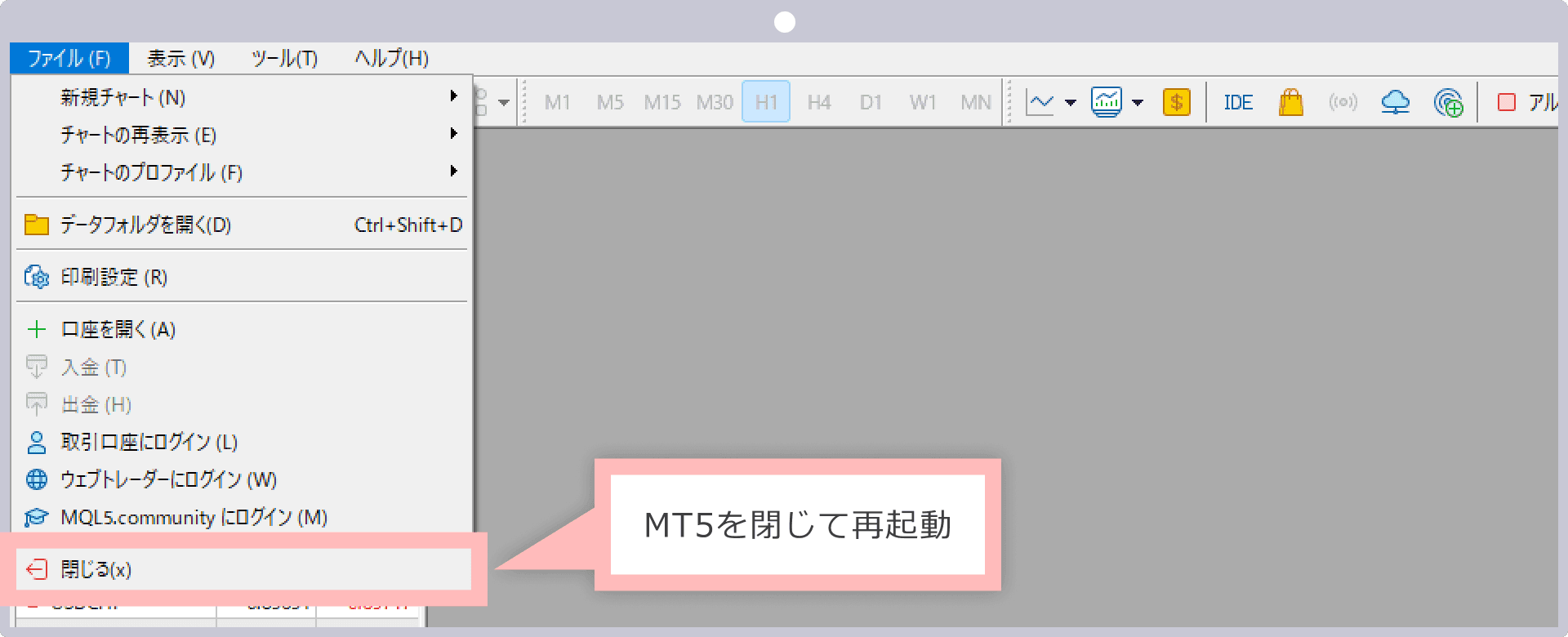
- 1.Launch MT5 and click 'File' → 'Open Data Folder' from the top menu
- 2.Open the 'MQL5' → 'Experts' folder
- 3.Copy & paste the downloaded DONCHIAN_ENGINE_EA.ex5 file into this folder
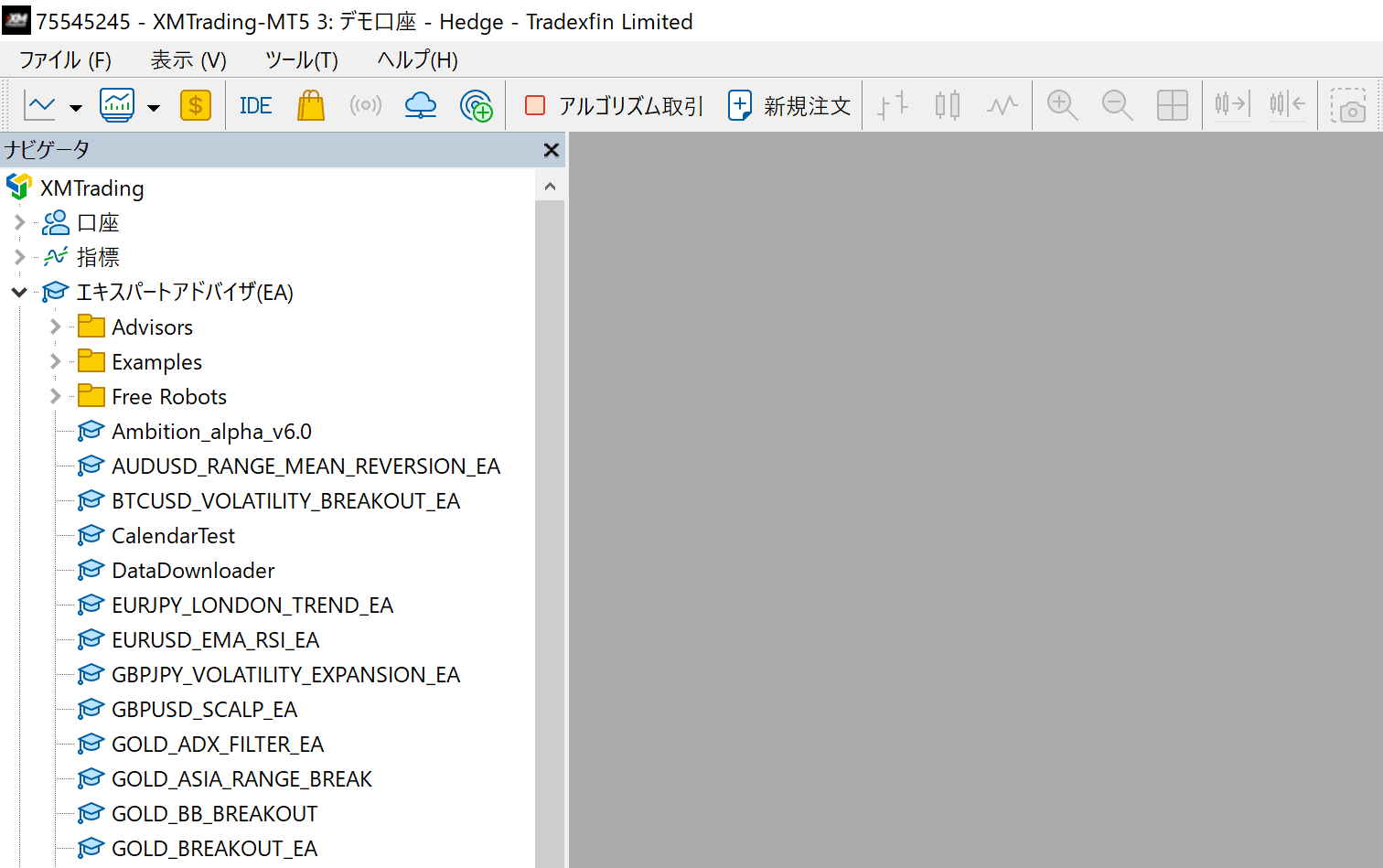
📌 Tham chiếu Ký hiệu theo Sàn
Ngay cả với USDJPY, tên ký hiệu cũng khác nhau tùy sàn. Luôn xác nhận tên ký hiệu chính xác của sàn bạn
| Sàn | GOLD | EURUSD | USDJPY | Ghi chú |
|---|---|---|---|---|
| XMTrading | GOLD | EURUSD | USDJPY | Tài khoản Standard (không Micro) |
| XMTrading Micro | GOLDmicro | EURUSDmicro | USDJPYmicro | Ký hiệu tài khoản Micro |
| Exness Standard | XAUUSD | EURUSD | USDJPY | Tài khoản Standard |
| Exness Pro/Raw/Zero | XAUUSD | EURUSD | USDJPY | Tài khoản Pro/Raw/Zero |
| Exness Standard Cent | XAUUSDc | EURUSDc | USDJPYc | Tài khoản Cent (chú ý 'c' cuối) |
STEP 3 | Enable EA in MT5
- 1
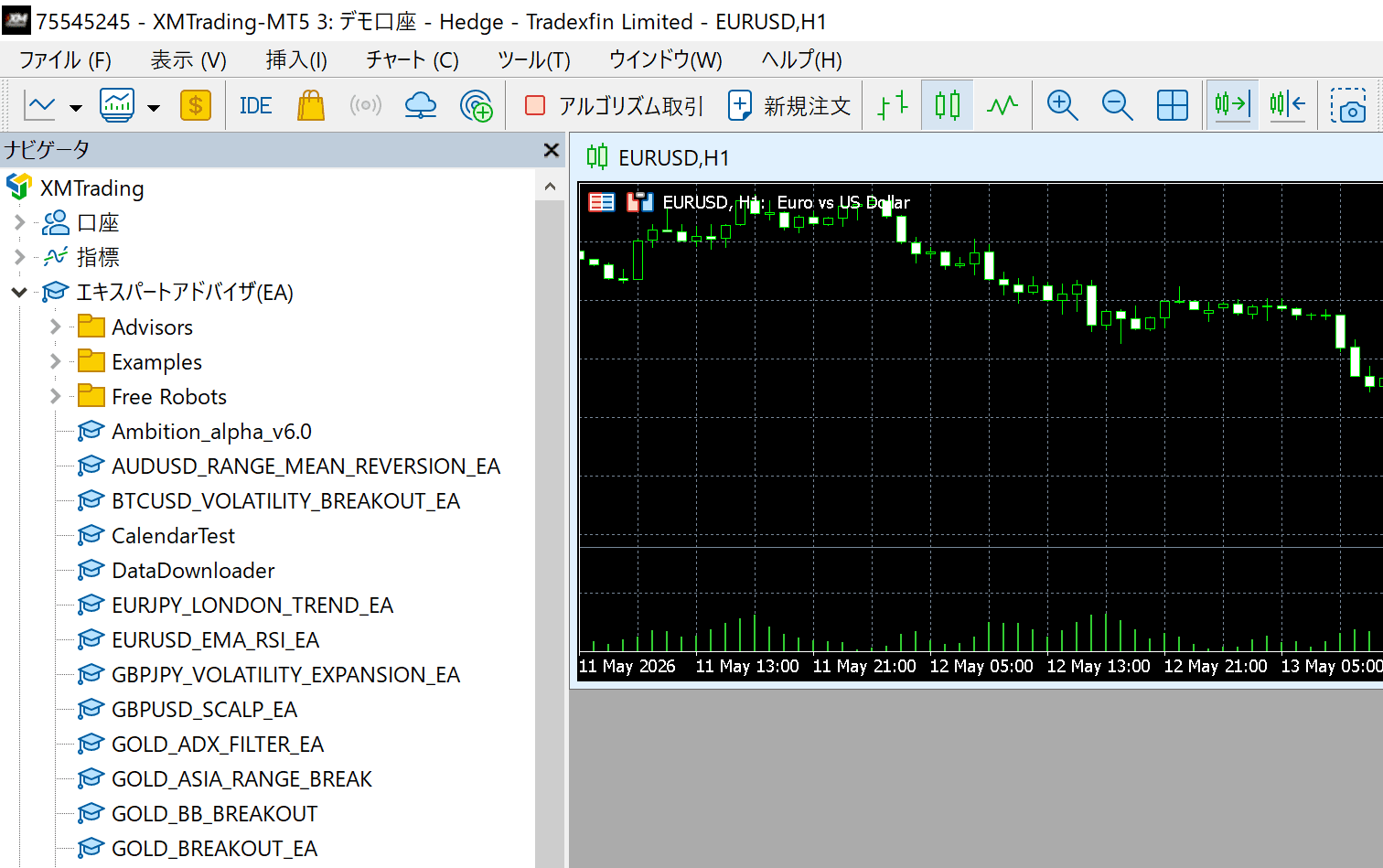
Refresh the Navigator
In the MT5 Navigator panel (left side), right-click 'Expert Advisors' → Click 'Refresh'. If DONCHIAN_ENGINE_EA appears, you've succeeded.
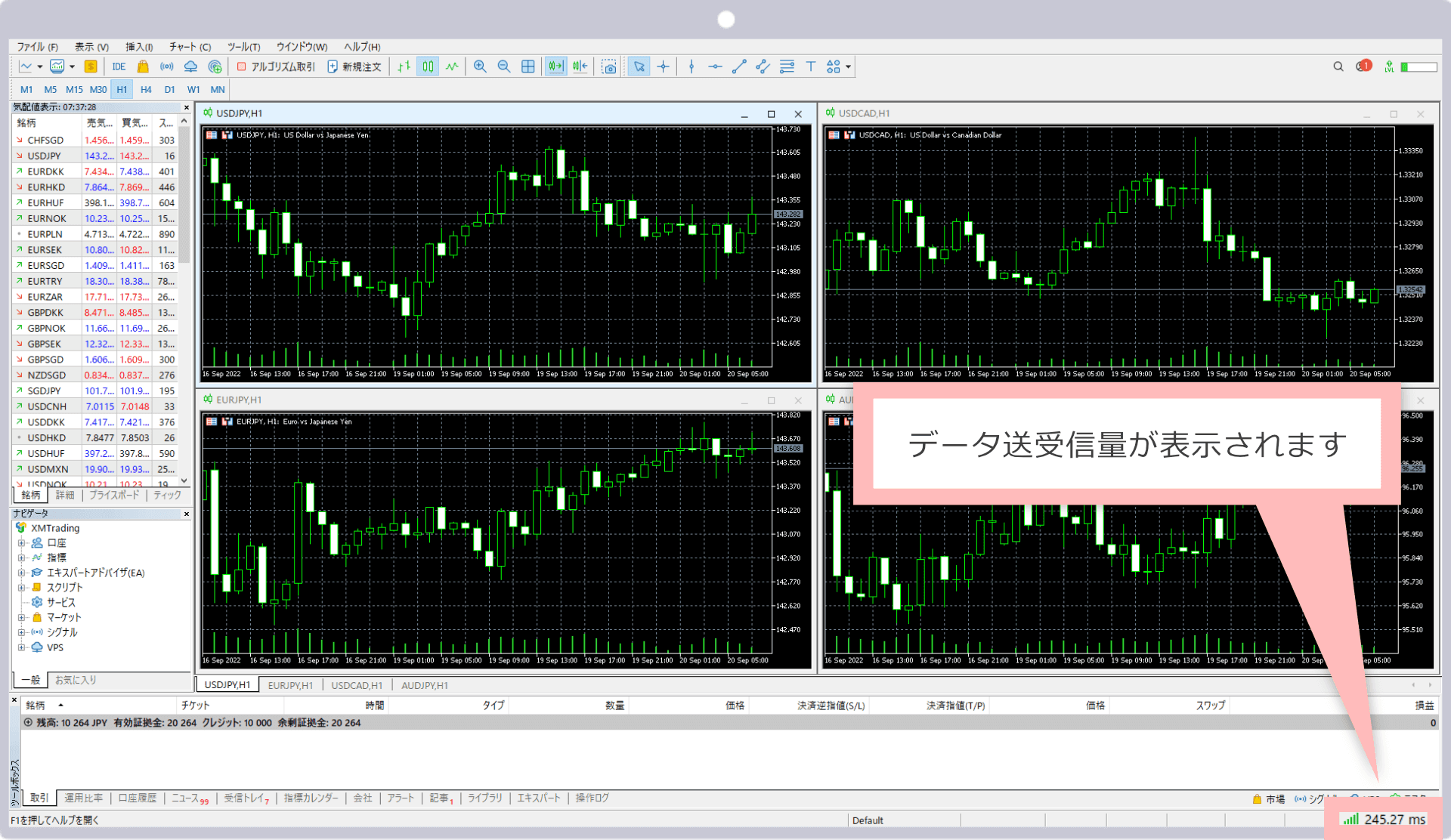
DONCHIAN_ENGINE_EA displayed in the list - 2
Display USDJPY Chart
File → New Chart → Select USDJPY. Set the timeframe to H1 (1 hour).
- 3
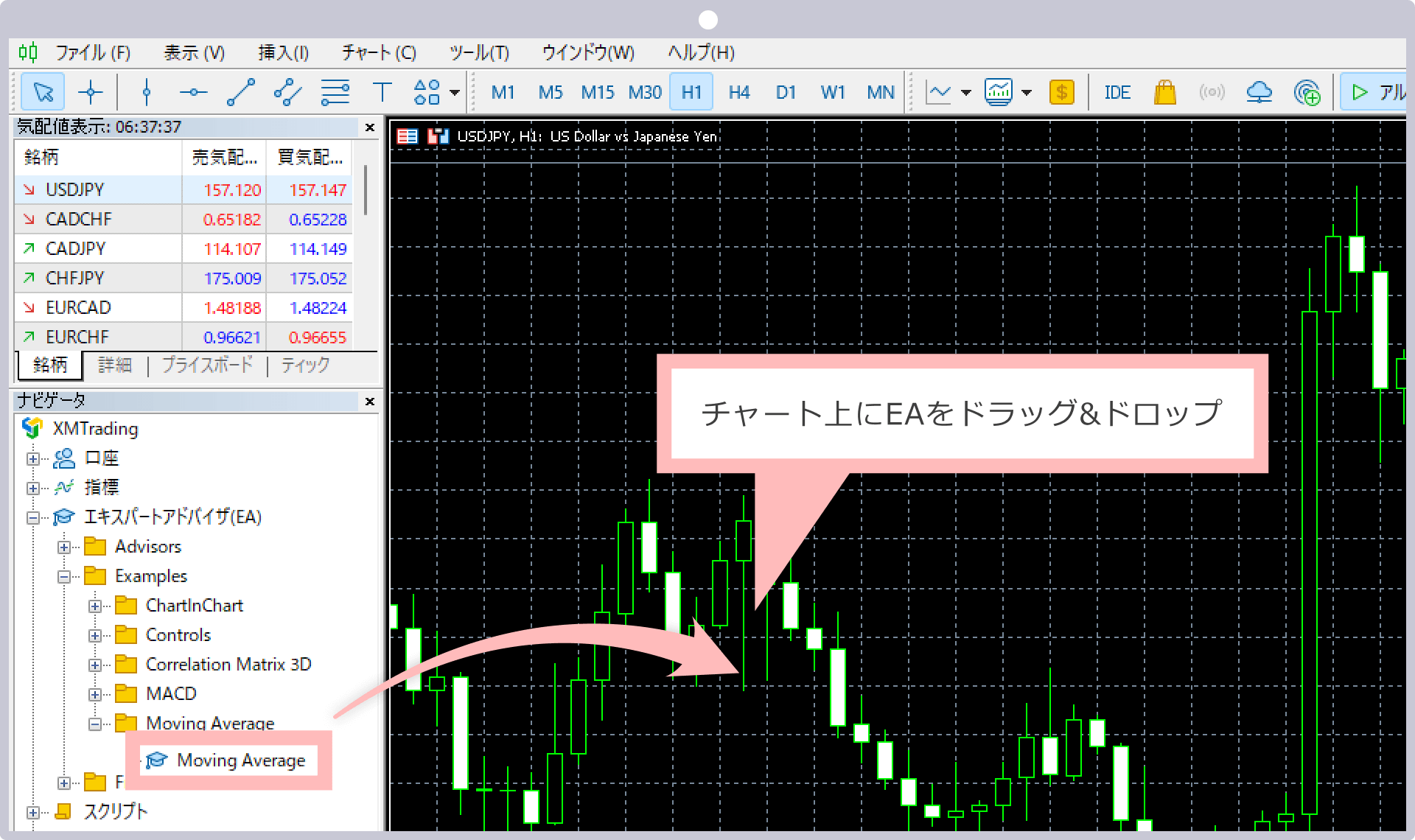
Drag EA onto Chart
Drag 'DONCHIAN_ENGINE_EA' from the Navigator onto the USDJPY chart.
- 4
Check Settings Dialog
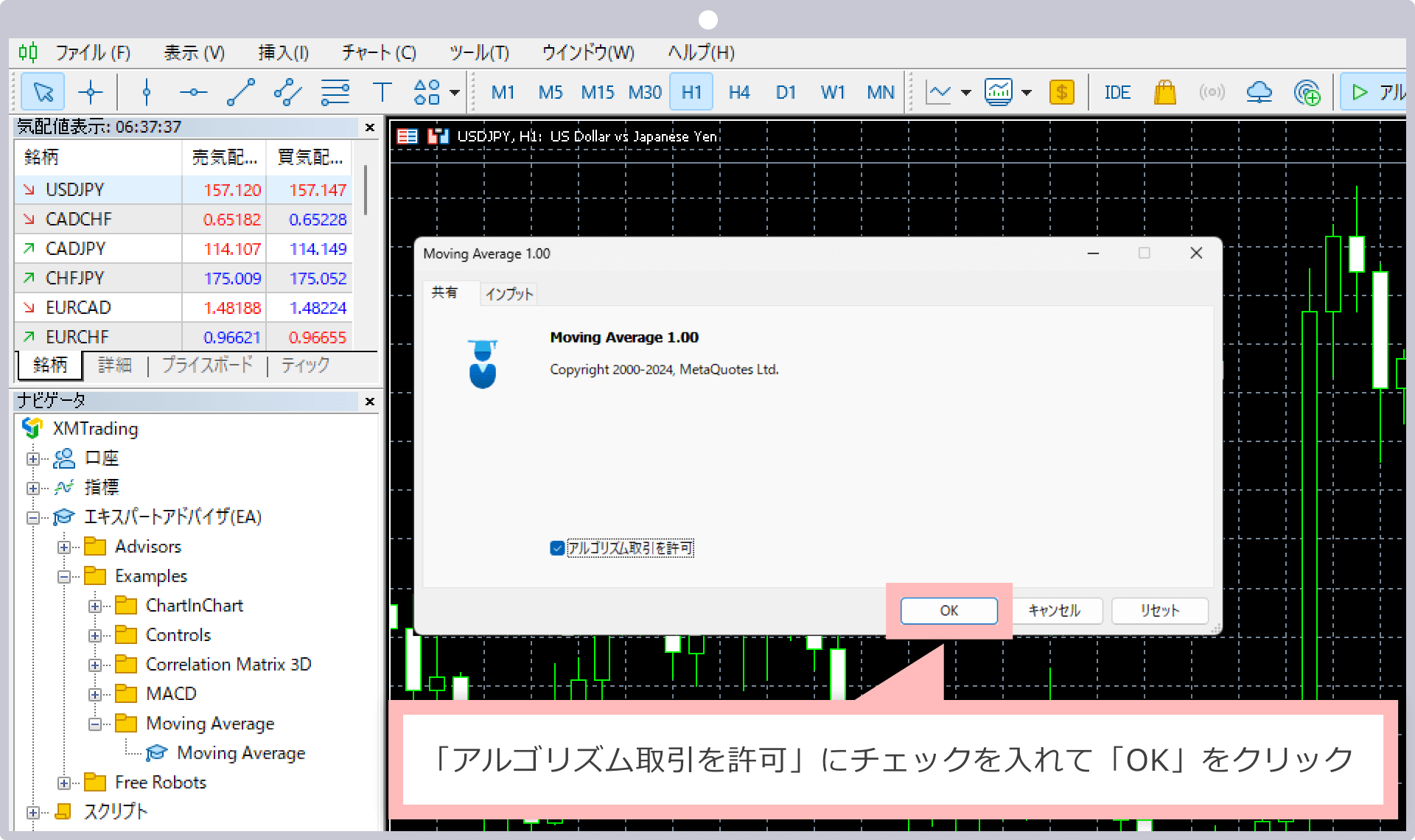
The settings dialog will open. In the 'Common' tab, confirm 'Allow Automated Trading' is checked, then click 'OK'.
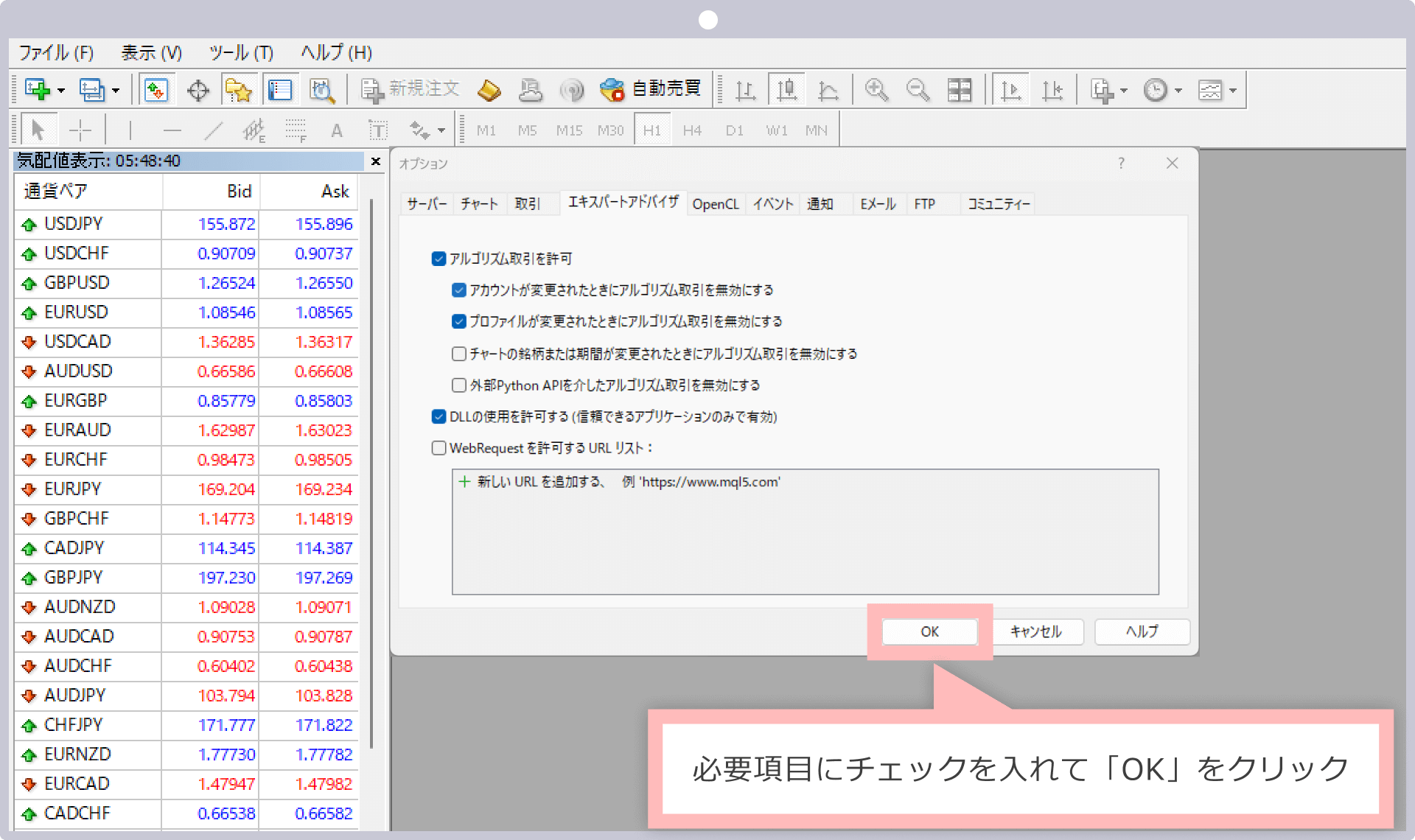
Check 'Allow Automated Trading' - 5
Turn ON Auto Trading Button
Confirm that the 'Auto Trading' button in the MT5 toolbar is green. If the EA name appears in the upper right of the chart, it's running.
EA name and green auto trading button visible in upper right
STEP 4 | Parameter Settings
You can configure values in the 'Input Parameters' tab of the EA's properties dialog. For beginners, it's recommended to use default values.
| Parameter | Default | Recommended |
|---|---|---|
| RiskPercent | 0.5 | 0,5 (người mới: giữ nguyên) |
| FixedLot | 0.0 | 0 (giữ tự động) |
| HoldBars | 60 | 60 (không đổi) |
| Symbol | USDJPY | USDJPY (tự nhận diện mã) |
See the EA detail page for full parameter details.
STEP 5 | Verify Operation
Let's verify that the EA is running correctly.
- ✓EA name (DONCHIAN_ENGINE_EA) is displayed in the upper right of the chart
- ✓The 'Auto Trading' button in the toolbar is green
- ✓No error messages in the 'Experts' tab
- ✓Always test on a demo account before using a live account
✅ Danh sách Kiểm tra Cài đặt EA
- □Đã sao chép tệp EA (.ex5) vào thư mục Experts
- □Đã bật giao dịch tự động trong MT5
- □Đã mở biểu đồ với tên ký hiệu đúng của sàn
- □Đã gắn EA vào biểu đồ
- □Đã đặt tham số và nhấn OK
- □Biểu tượng mặt cười (:-)) hiển thị trên biểu đồ
- □Không có lỗi trong tab Experts