คู่มือติดตั้งและตั้งค่า MT5 (MetaTrader 5)
Updated: May 15, 2026
▼ Table of Contents
STEP 1 | Download MT5
MT5 can be downloaded for free from the MetaQuotes Software official site or your broker's official site. Using a broker-specific MT5 may simplify login settings, so we recommend downloading from HFM, XM, or Exness.
XM Trading: From the 'MT5 Download' page on XM's official site Exness: From Exness official site → 'Platform' → 'MT5'
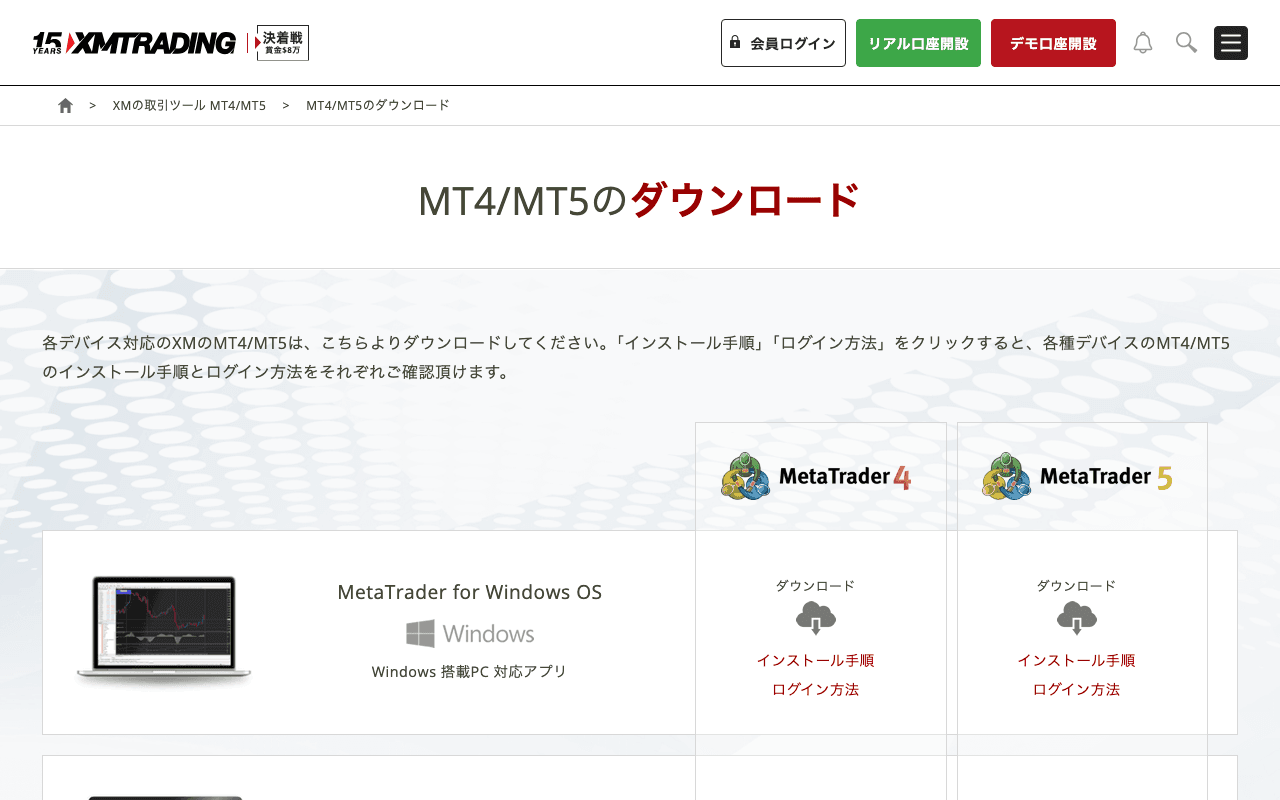
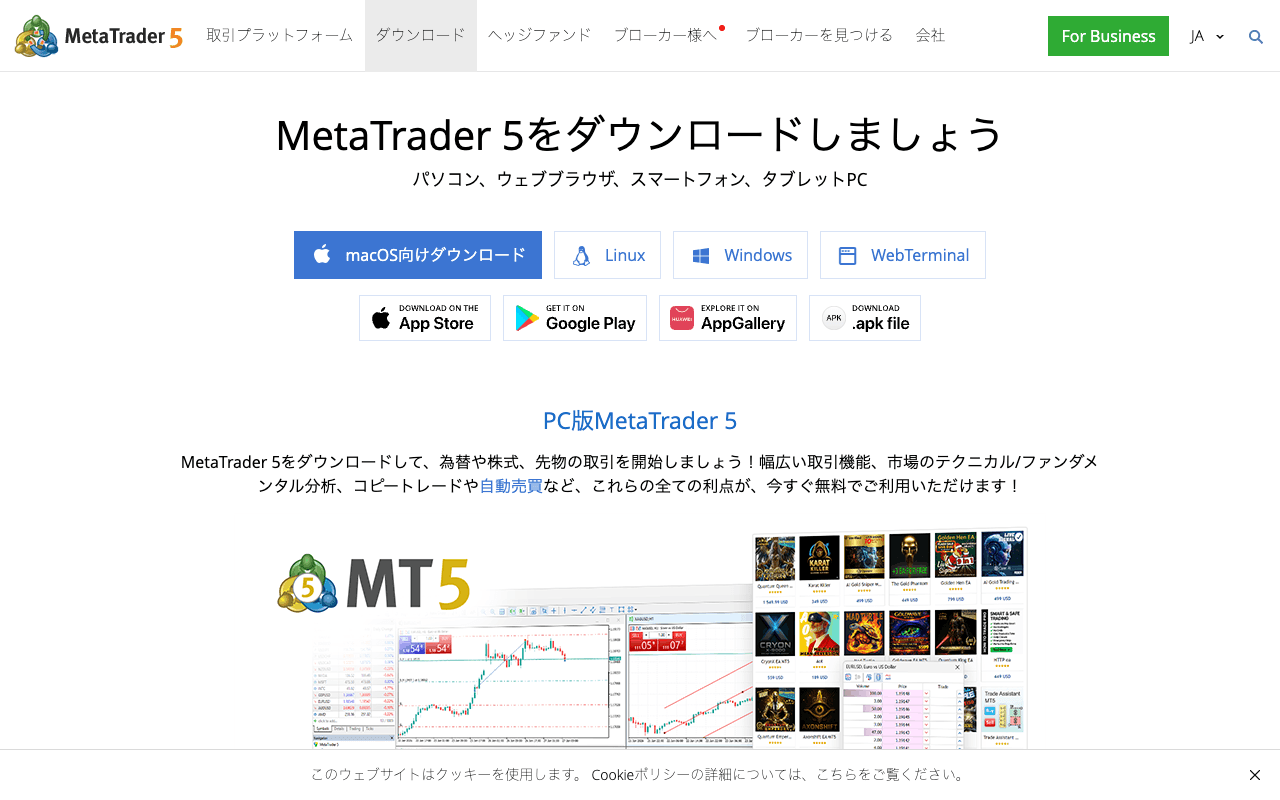
Download the installer (.exe) for Windows. Since MT5 is not natively supported on MacOS, using a virtual environment like Wine or Parallels Desktop, or a VPS, is recommended.
STEP 2 | Installation Steps
- 1
Run the Installer
Double-click the downloaded .exe file to launch it. If a UAC (User Account Control) prompt appears, click 'Yes'.
- 2
Accept License Agreement
Review the license agreement, check 'I agree', and click 'Next'.
- 3
Select Installation Folder
The default installation folder (C:\Program Files\MetaTrader 5) is fine. Click 'Install'.
- 4
Installation Complete
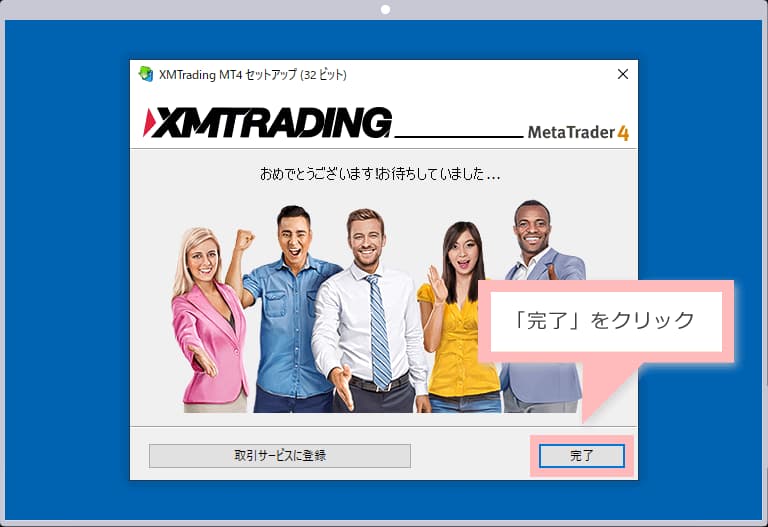
Once installation is complete, click 'Finish'. MT5 will start automatically.
STEP 3 | Login to Your Broker
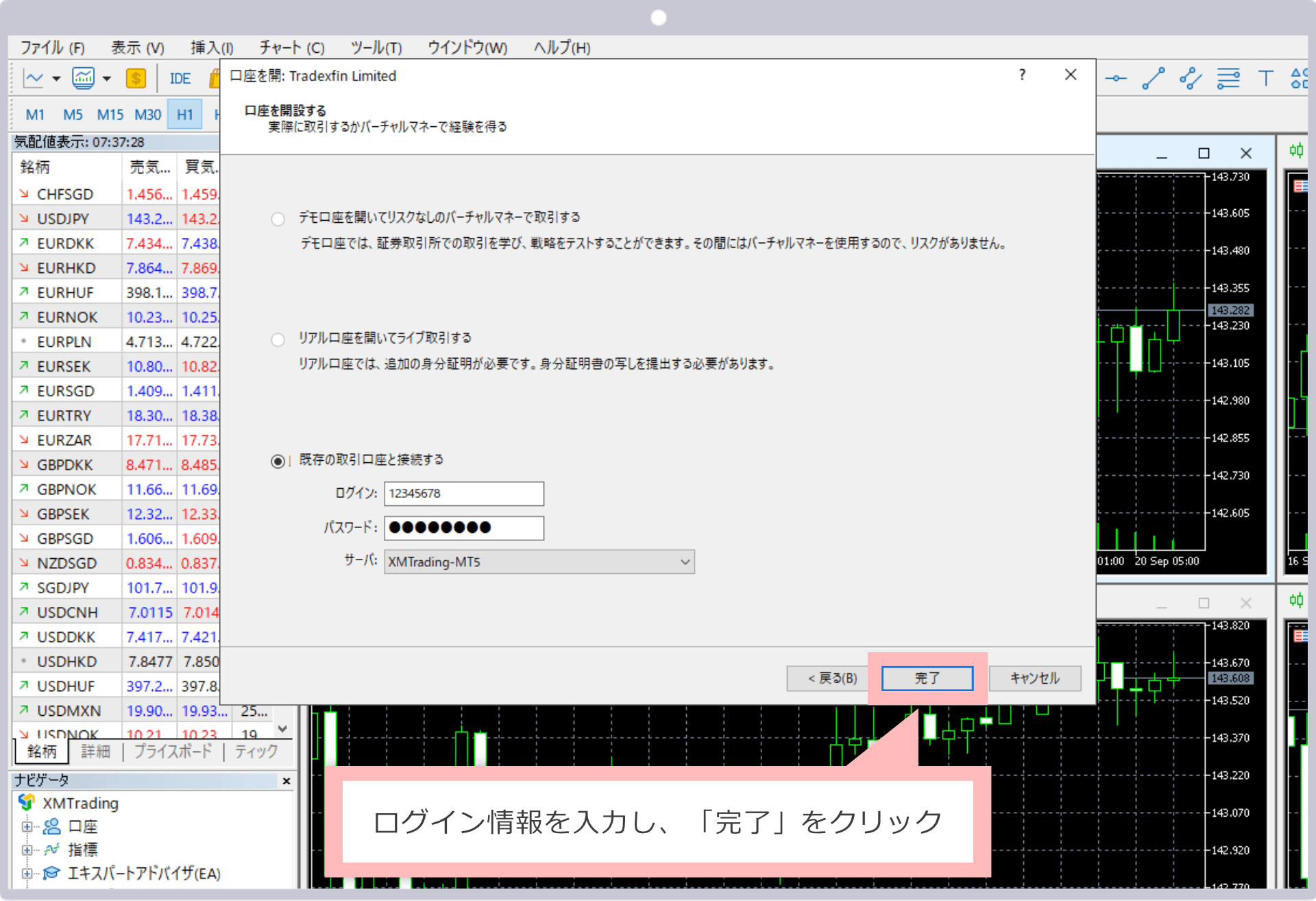
Once MT5 launches, log in to your broker's MT5 account. Your account number, password, and server name will be sent by email when you open your account.
- Step 1.From the MT5 top menu, select 'File' → 'Login to Trade Account'
- Step 2.Enter your 'Login ID (account number)', 'Password', and 'Server Name'
- Step 3.Select your broker's server (e.g., XMTrading-Real3) for 'Server Name'
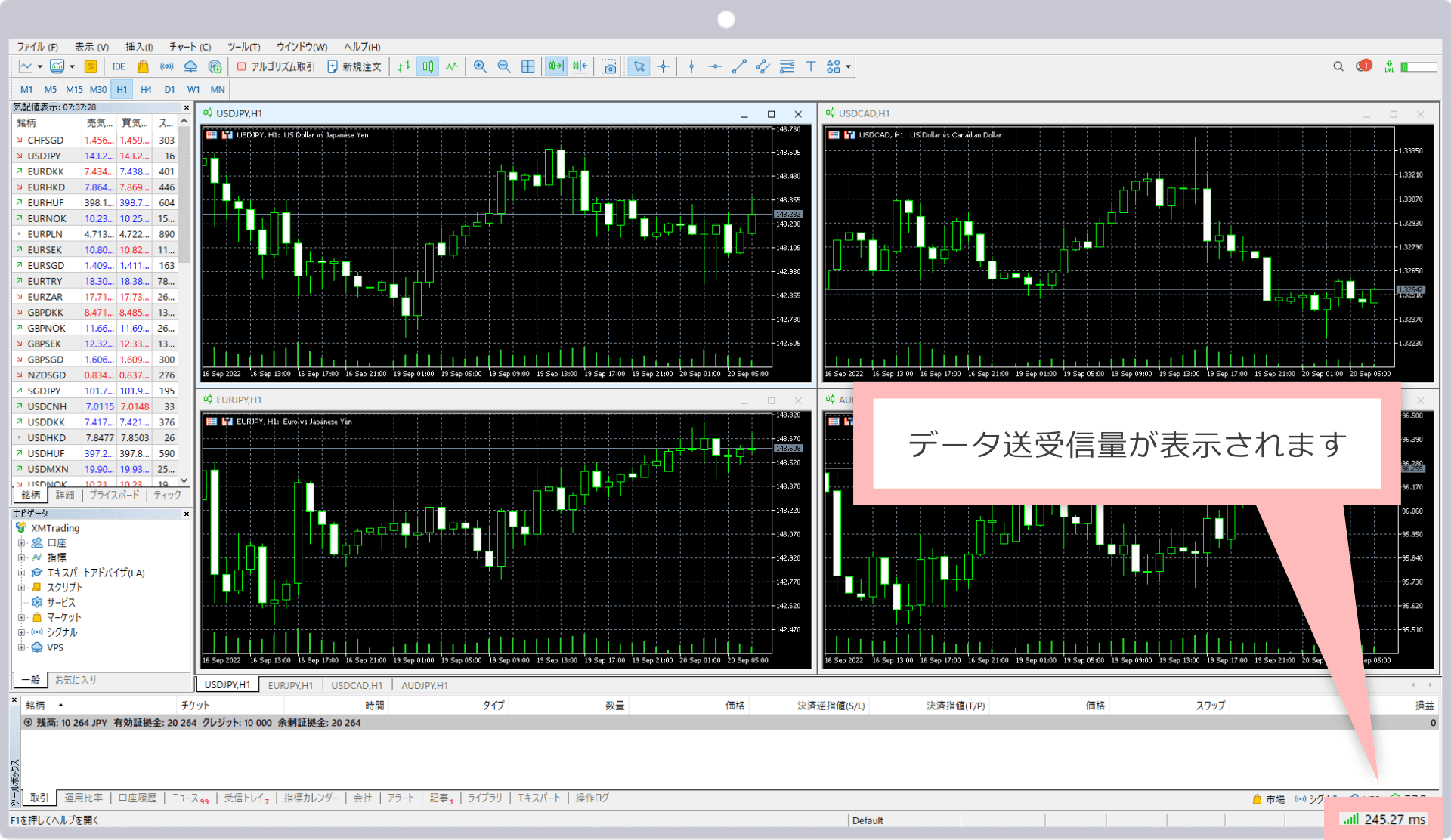
- Step 4.Click 'Login' — if a green connection icon appears at the bottom right, you've succeeded
STEP 4 | Basic Chart Settings
After logging in, display a chart and configure basic settings.
- ✓Candlestick Display: Right-click on the chart → 'Properties' → 'Common' → Select 'Candlesticks'
- ✓Timeframe Selection: Click H1 at the top of the chart to display the 1-hour timeframe
- ✓Auto Scroll: From 'Charts' menu → Enable 'Auto Scroll'
- ✓Enable Auto Trading: Press the 'Auto Trading' button in the toolbar to turn it ON (required when using EAs)
STEP 5 | How to Display XAUUSD (GOLD)
XAUUSD may not be displayed by default. Follow these steps to add it.
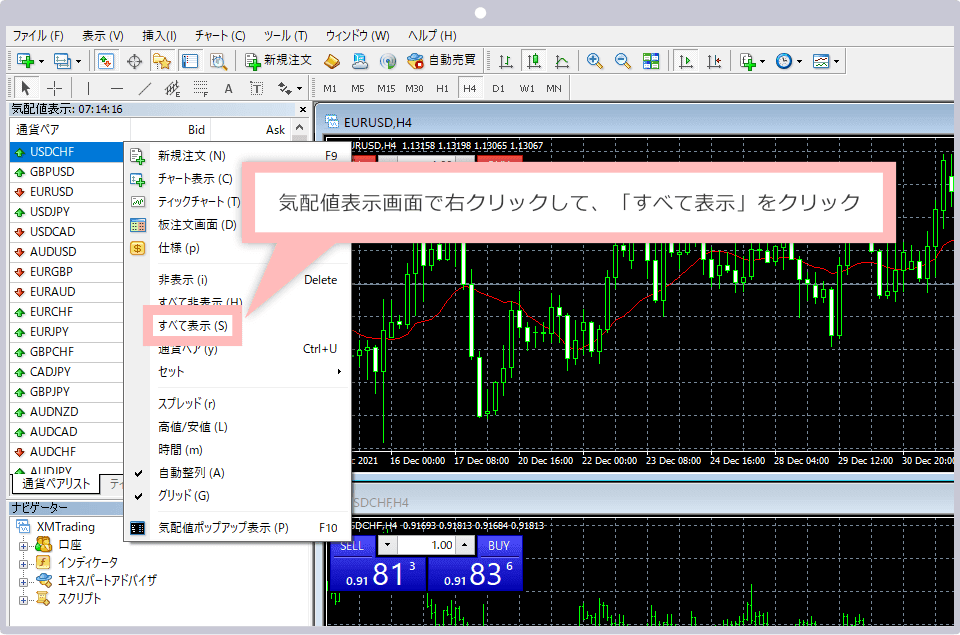
- Step 1.From the MT5 top menu, open 'View' → 'Market Watch'
- Step 2.Type 'XAUUSD' or 'GOLD' in the search field
- Step 3.Right-click the matching symbol → Select 'Open Chart'
- Step 4.Set the timeframe to H1 (1 hour) — ready to run your EA