
كيفية تثبيت الإكسبيرت على MT5: دليل كامل للمبتدئين
Updated: May 15, 2026
▼ Table of Contents
STEP 1 | Download EA File
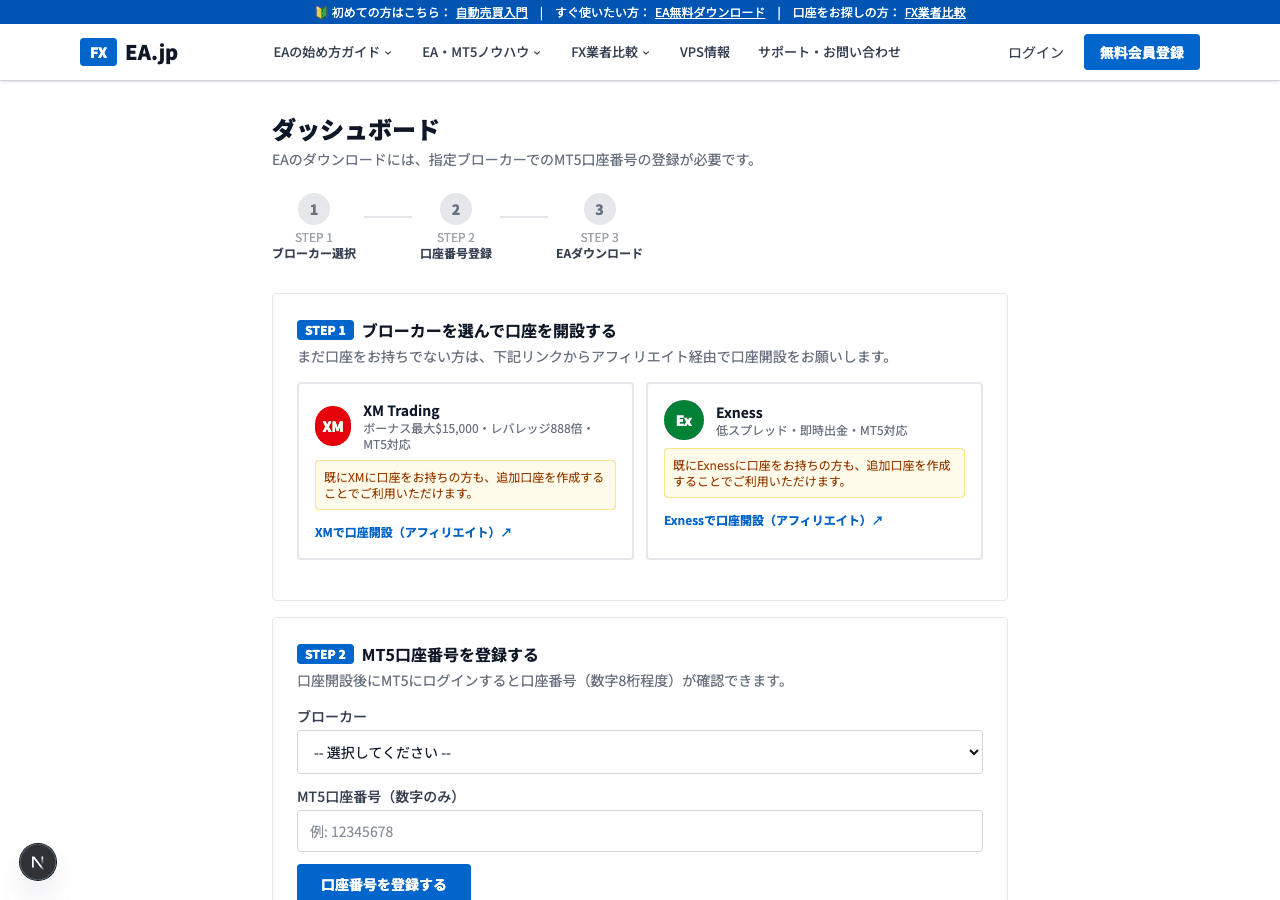
أدخل رقم حساب MT5 في نموذج التسجيل على صفحة الروبوت المجاني (DONCHIAN ENGINE). بعد الموافقة يصلك رابط التنزيل بالبريد. فكّ ضغط DONCHIAN_ENGINE.zip لتحصل على الروبوت (DONCHIAN_ENGINE_EA.ex5) وملاحظة الإعداد الأول (SETUP_FIRST.txt). ملف .ex5 مُجمَّع مسبقًا، فلا حاجة للترجمة.
STEP 2 | Copy EA File to MT5 Folder
Place the downloaded EA file in a folder that MT5 can recognize.
※ AppData is a hidden folder. In Explorer, go to 'View' → enable 'Show hidden files'.
Easy Method: Open from MT5 Menu
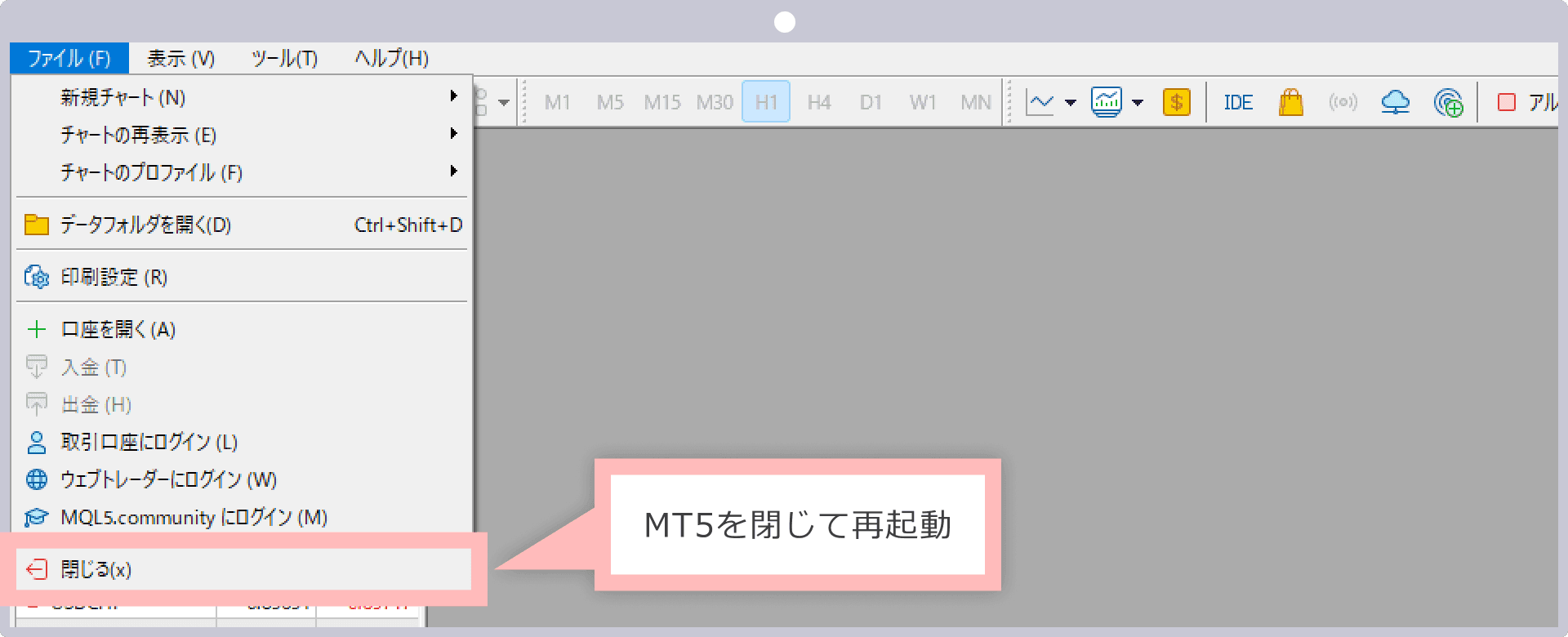
- 1.Launch MT5 and click 'File' → 'Open Data Folder' from the top menu
- 2.Open the 'MQL5' → 'Experts' folder
- 3.Copy & paste the downloaded DONCHIAN_ENGINE_EA.ex5 file into this folder
📌 رمز الوسيط
حتى بالنسبة لـ USDJPY، تختلف أسماء الرموز حسب الوسيط. تأكد دائماً من اسم الرمز الدقيق لوسيطك
| الوسيط | GOLD | EURUSD | USDJPY | ملاحظة |
|---|---|---|---|---|
| XMTrading | GOLD | EURUSD | USDJPY | حساب قياسي (غير Micro) |
| XMTrading Micro | GOLDmicro | EURUSDmicro | USDJPYmicro | رمز حساب Micro |
| Exness Standard | XAUUSD | EURUSD | USDJPY | حساب قياسي |
| Exness Pro/Raw/Zero | XAUUSD | EURUSD | USDJPY | حساب Pro/Raw/Zero |
| Exness Standard Cent | XAUUSDc | EURUSDc | USDJPYc | حساب Cent (انتبه للحرف c في النهاية) |
STEP 3 | Enable EA in MT5
- 1
Refresh the Navigator
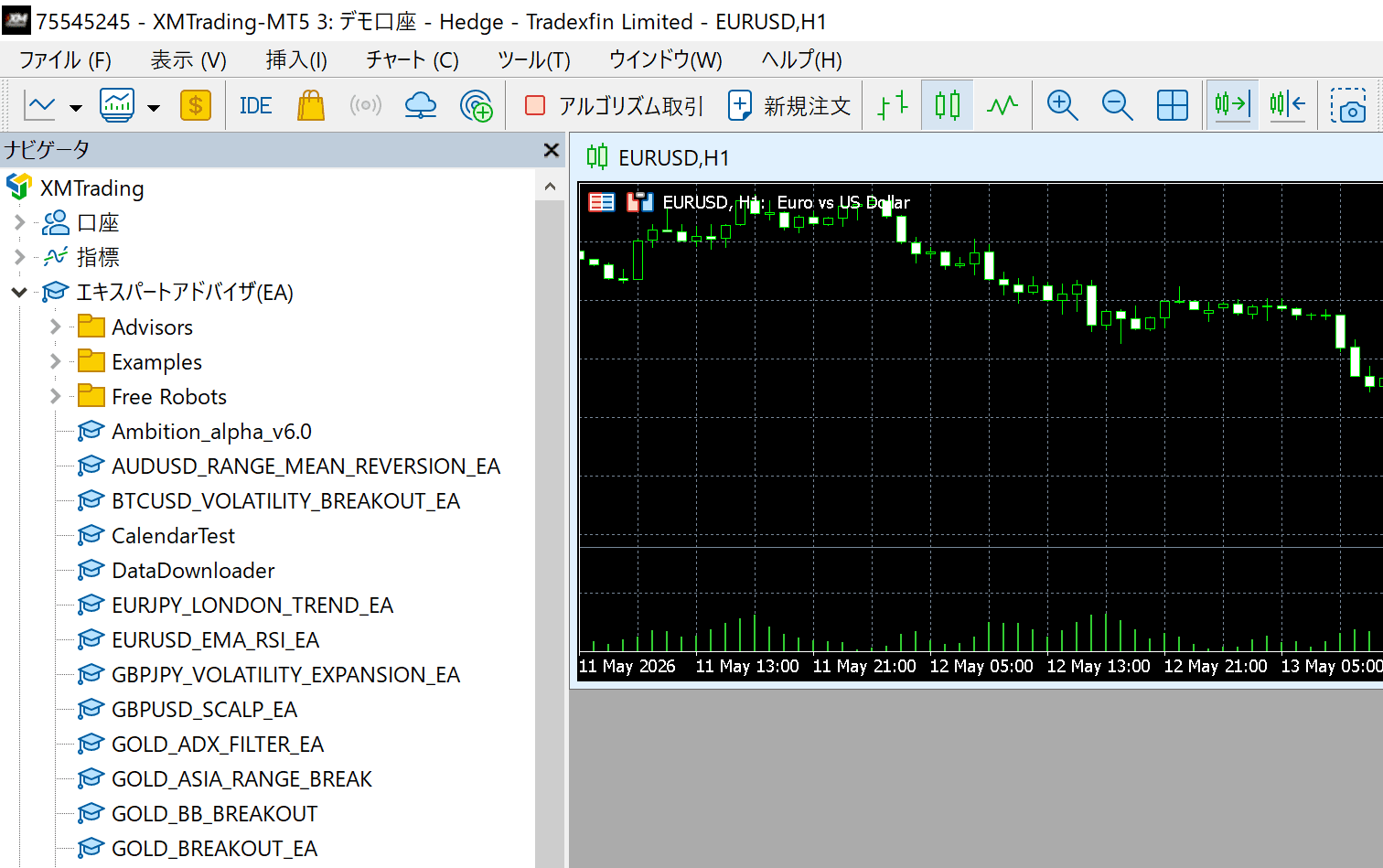
In the MT5 Navigator panel (left side), right-click 'Expert Advisors' → Click 'Refresh'. If DONCHIAN_ENGINE_EA appears, you've succeeded.
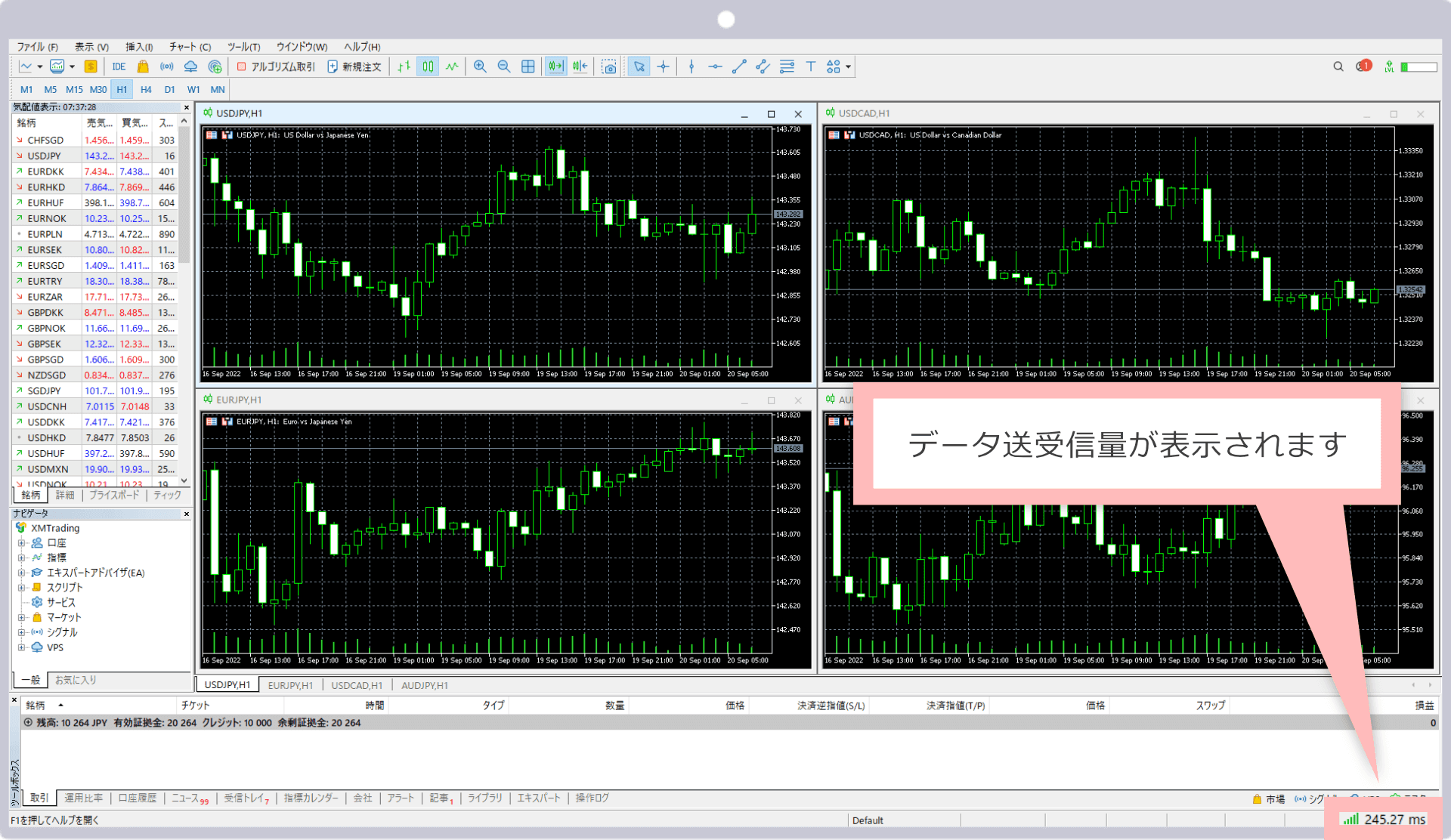
DONCHIAN_ENGINE_EA displayed in the list - 2
Display USDJPY Chart
File → New Chart → Select USDJPY. Set the timeframe to H1 (1 hour).
- 3
Drag EA onto Chart
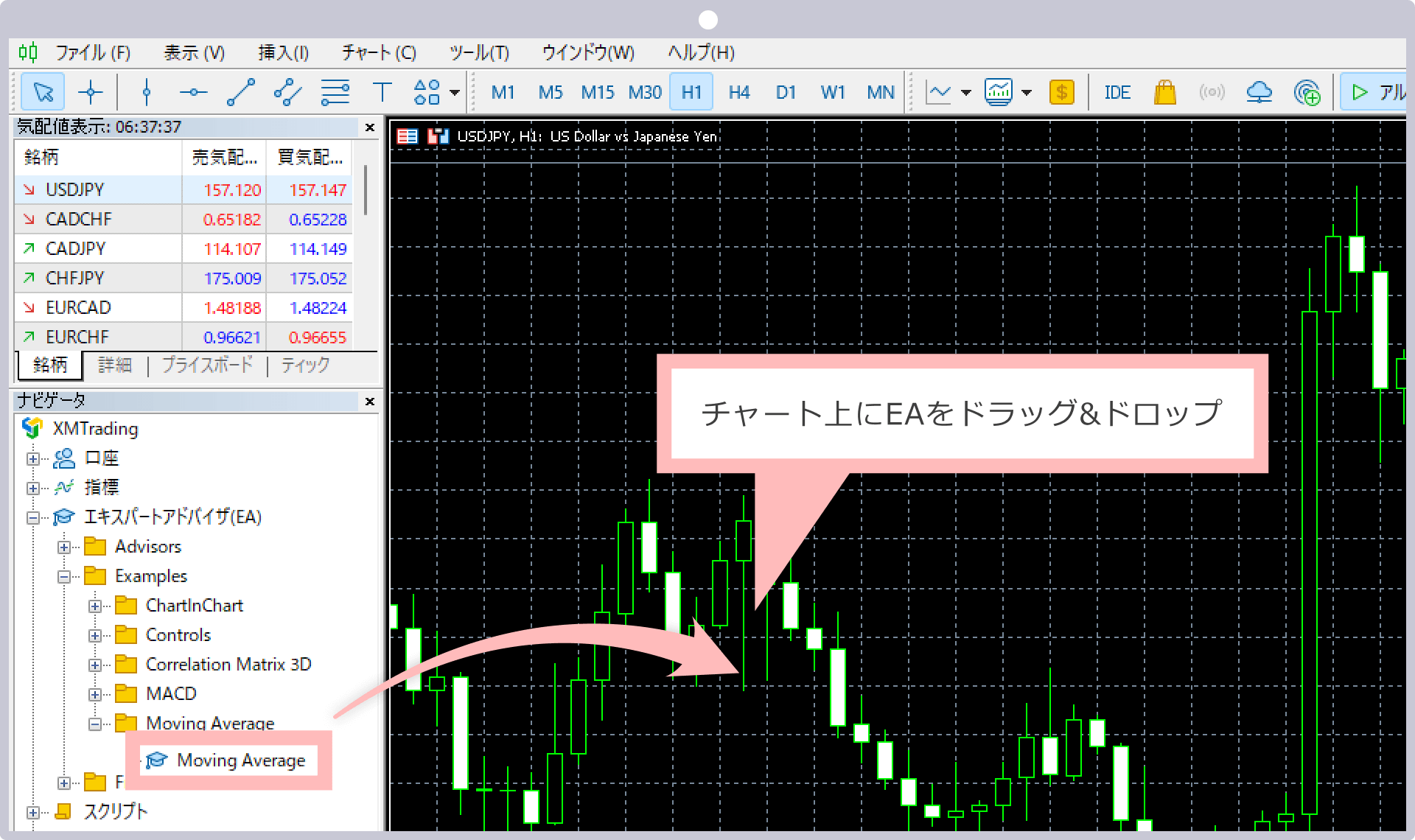
Drag 'DONCHIAN_ENGINE_EA' from the Navigator onto the USDJPY chart.
- 4
Check Settings Dialog
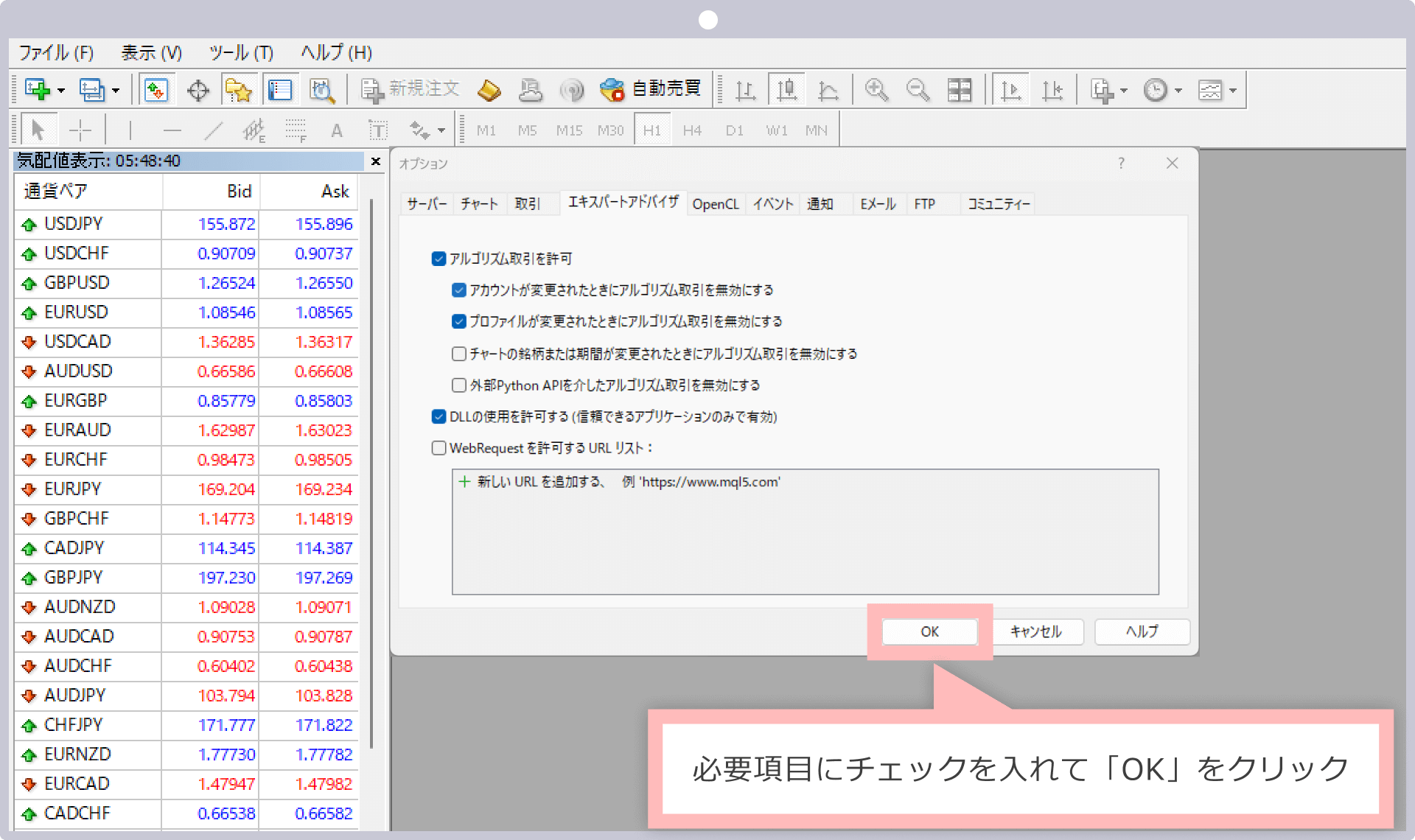
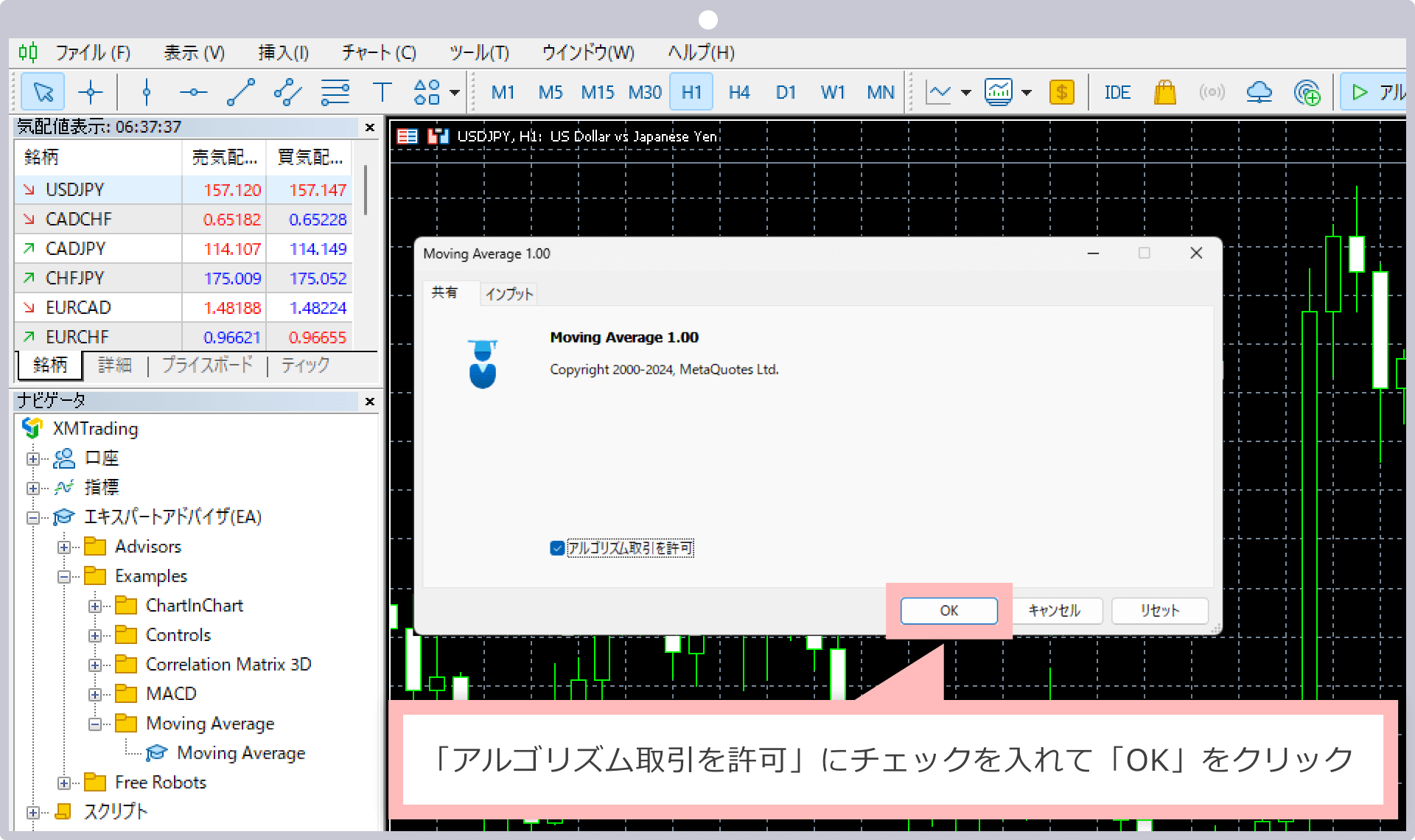
The settings dialog will open. In the 'Common' tab, confirm 'Allow Automated Trading' is checked, then click 'OK'.
Check 'Allow Automated Trading' - 5
Turn ON Auto Trading Button
Confirm that the 'Auto Trading' button in the MT5 toolbar is green. If the EA name appears in the upper right of the chart, it's running.
EA name and green auto trading button visible in upper right
STEP 4 | Parameter Settings
You can configure values in the 'Input Parameters' tab of the EA's properties dialog. For beginners, it's recommended to use default values.
| Parameter | Default | Recommended |
|---|---|---|
| RiskPercent | 0.5 | 0.5 (للمبتدئين: اتركه كما هو) |
| FixedLot | 0.0 | 0 (إبقاء الحساب التلقائي) |
| HoldBars | 60 | 60 (بدون تغيير) |
| Symbol | USDJPY | USDJPY (يُكتشف الرمز تلقائيًا) |
See the EA detail page for full parameter details.
STEP 5 | Verify Operation
Let's verify that the EA is running correctly.
- ✓EA name (DONCHIAN_ENGINE_EA) is displayed in the upper right of the chart
- ✓The 'Auto Trading' button in the toolbar is green
- ✓No error messages in the 'Experts' tab
- ✓Always test on a demo account before using a live account
✅ قائمة التحقق من إعداد EA
- □نسخت ملف EA (.ex5) إلى مجلد Experts
- □تم تمكين التداول الآلي في MT5
- □فتح الرسم البياني باسم الرمز الصحيح للوسيط
- □تم إرفاق EA بالرسم البياني
- □تم ضبط المعلمات والنقر على موافق
- □يظهر رمز الابتسامة (:-)) على الرسم البياني
- □لا توجد أخطاء في علامة تبويب Experts