
Cara memasang EA di MT5: panduan lengkap untuk pemula
Updated: May 15, 2026
▼ Table of Contents
STEP 1 | Download EA File
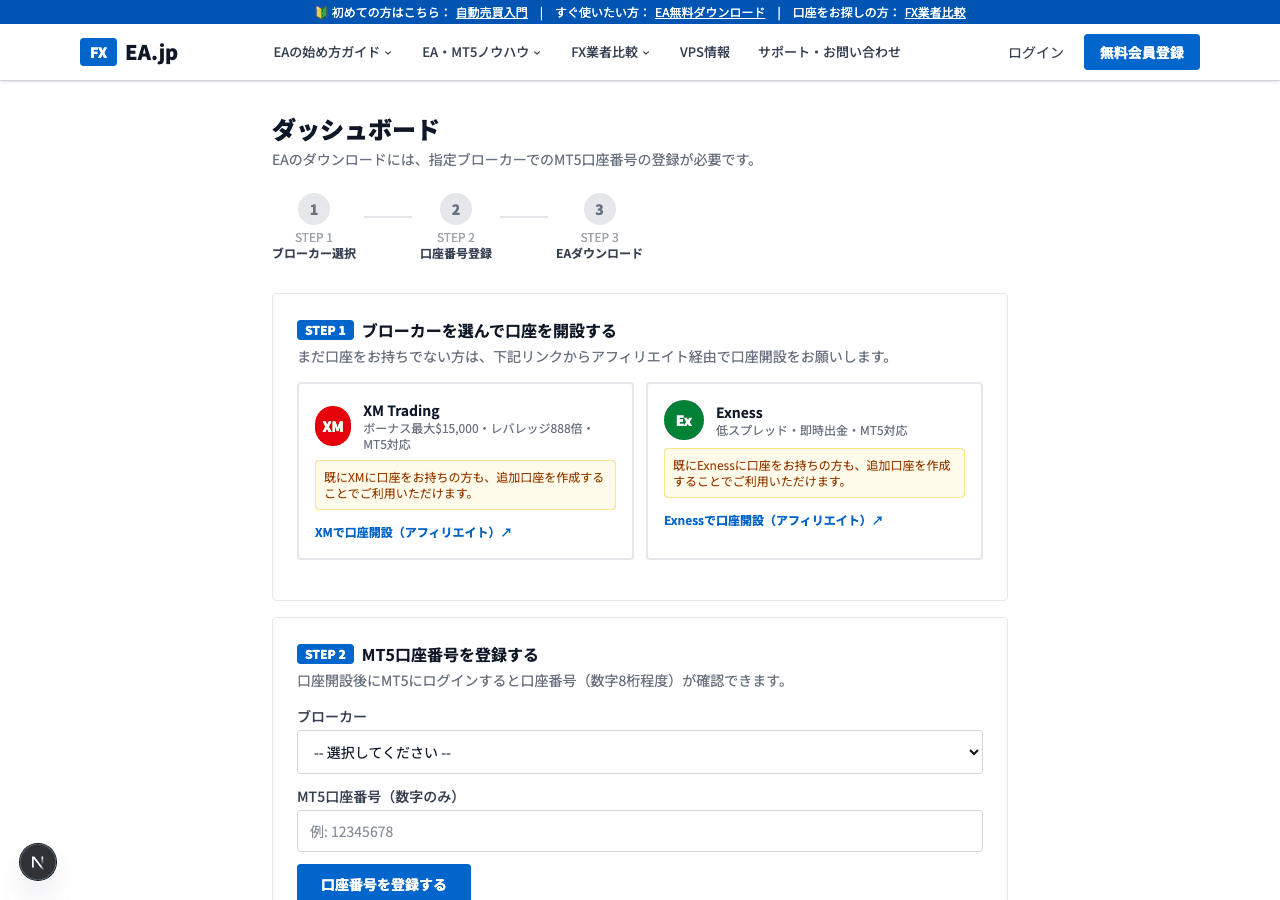
Masukkan nomor akun MT5 Anda di formulir pendaftaran pada halaman EA gratis (DONCHIAN ENGINE). Setelah disetujui, tautan unduhan dikirim lewat email. Ekstrak DONCHIAN_ENGINE.zip untuk mendapatkan EA (DONCHIAN_ENGINE_EA.ex5) dan catatan pengaturan awal (SETUP_FIRST.txt). File .ex5 sudah terkompilasi, jadi tidak perlu kompilasi.
STEP 2 | Copy EA File to MT5 Folder
Place the downloaded EA file in a folder that MT5 can recognize.
※ AppData is a hidden folder. In Explorer, go to 'View' → enable 'Show hidden files'.
Easy Method: Open from MT5 Menu
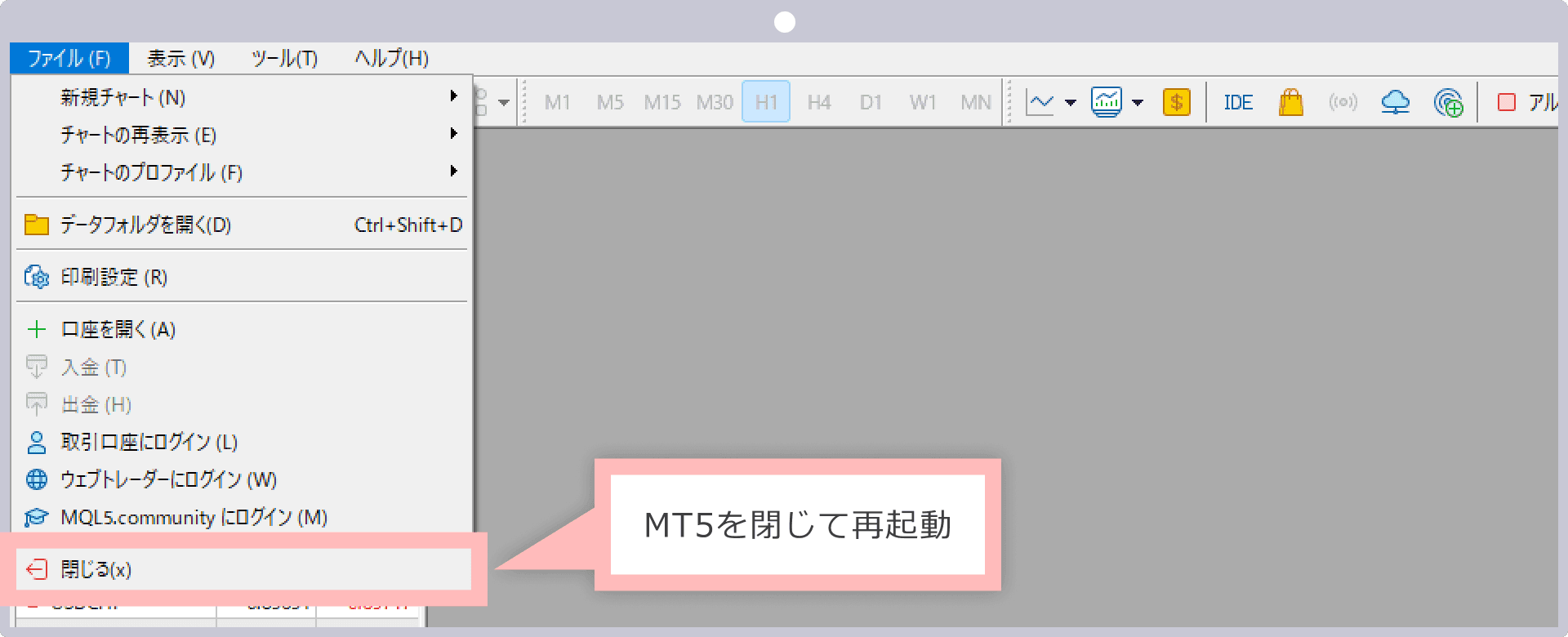
- 1.Launch MT5 and click 'File' → 'Open Data Folder' from the top menu
- 2.Open the 'MQL5' → 'Experts' folder
- 3.Copy & paste the downloaded DONCHIAN_ENGINE_EA.ex5 file into this folder
📌 Referensi Simbol Broker
Bahkan untuk USDJPY, nama simbol berbeda-beda tergantung broker. Selalu konfirmasi nama simbol yang tepat untuk broker Anda
| Broker | GOLD | EURUSD | USDJPY | Catatan |
|---|---|---|---|---|
| XMTrading | GOLD | EURUSD | USDJPY | Akun Standard (bukan Micro) |
| XMTrading Micro | GOLDmicro | EURUSDmicro | USDJPYmicro | Simbol akun Micro |
| Exness Standard | XAUUSD | EURUSD | USDJPY | Akun Standard |
| Exness Pro/Raw/Zero | XAUUSD | EURUSD | USDJPY | Akun Pro/Raw/Zero |
| Exness Standard Cent | XAUUSDc | EURUSDc | USDJPYc | Akun Cent (perhatikan 'c' di akhir) |
STEP 3 | Enable EA in MT5
- 1
Refresh the Navigator
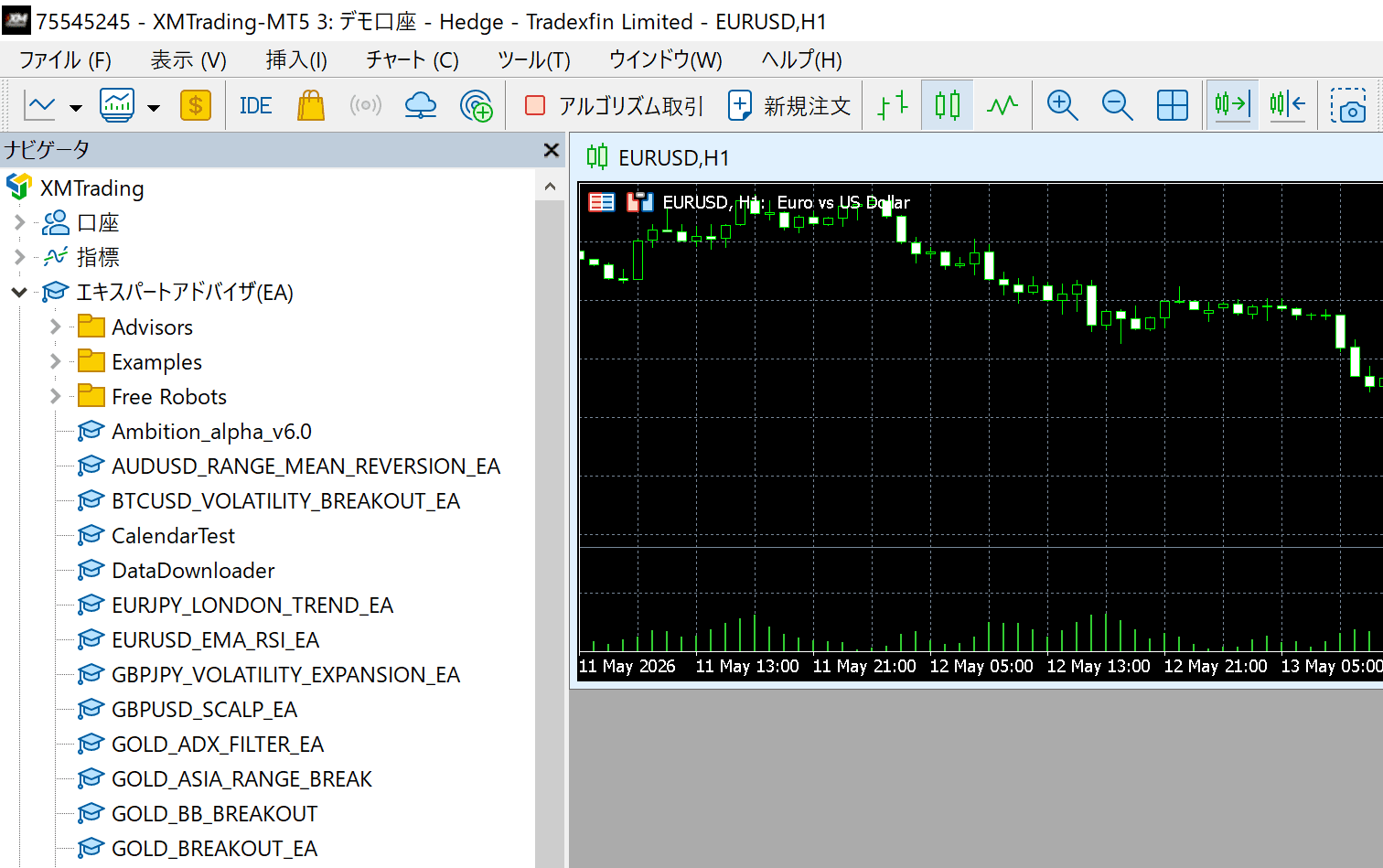
In the MT5 Navigator panel (left side), right-click 'Expert Advisors' → Click 'Refresh'. If DONCHIAN_ENGINE_EA appears, you've succeeded.
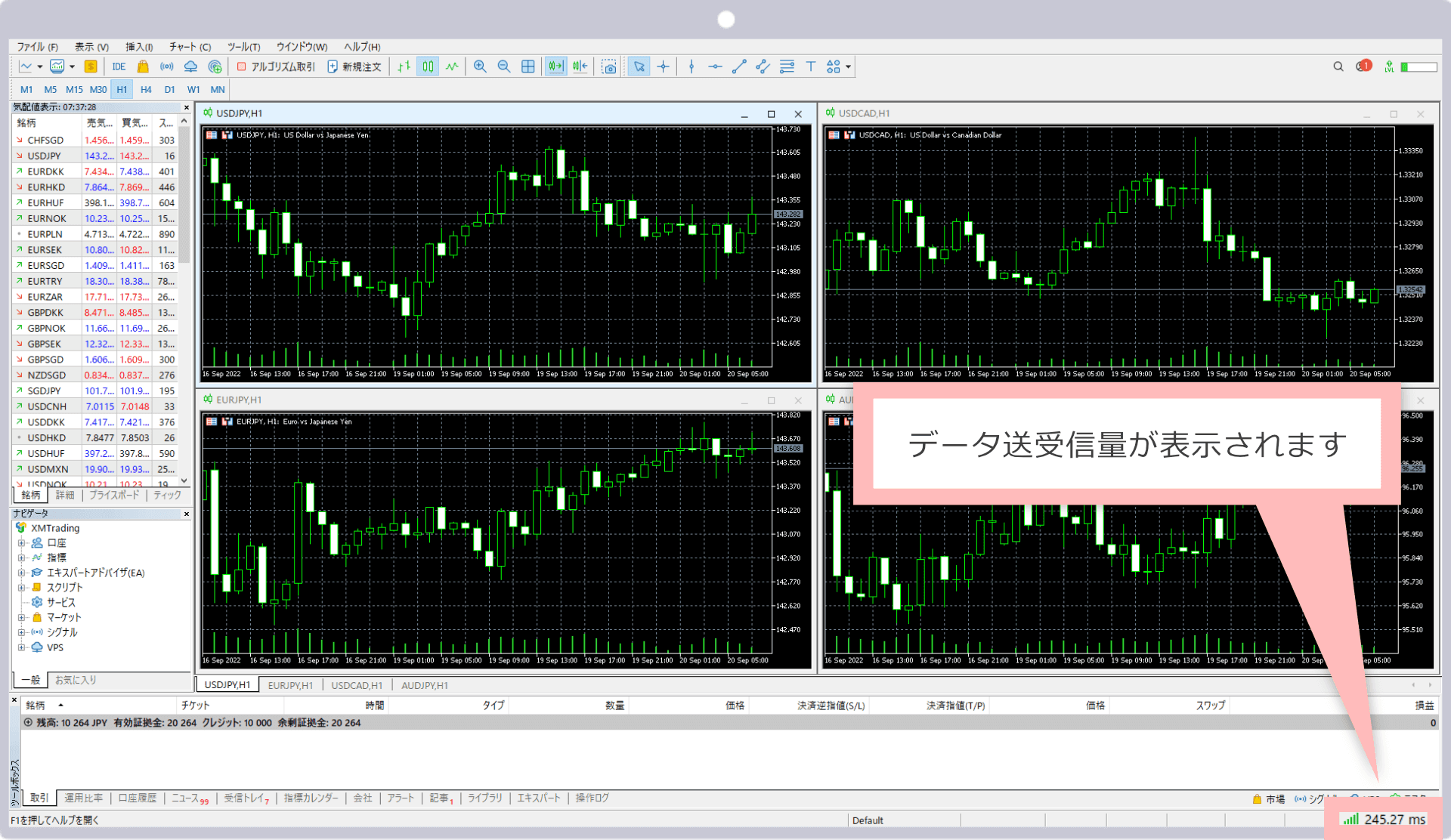
DONCHIAN_ENGINE_EA displayed in the list - 2
Display USDJPY Chart
File → New Chart → Select USDJPY. Set the timeframe to H1 (1 hour).
- 3
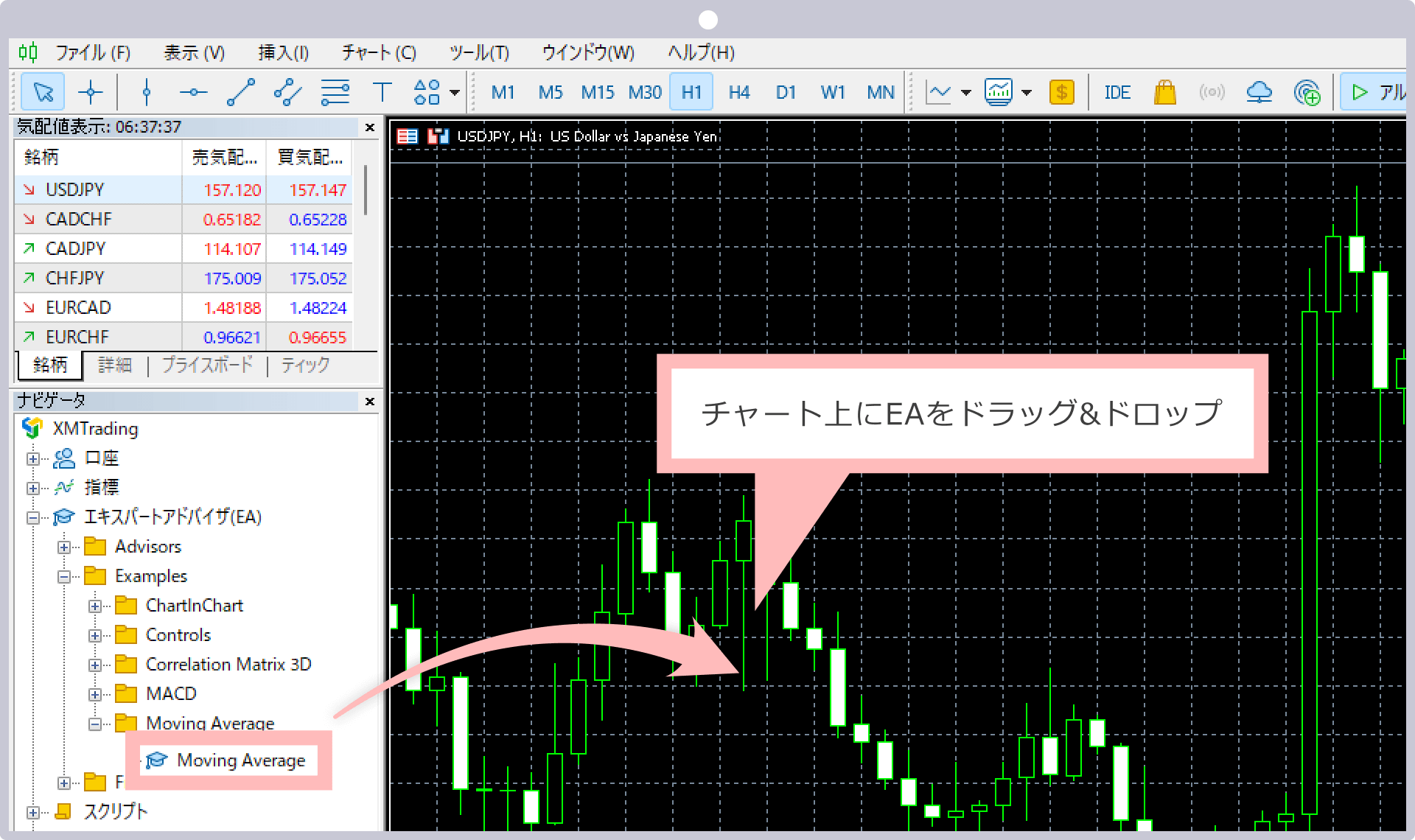
Drag EA onto Chart
Drag 'DONCHIAN_ENGINE_EA' from the Navigator onto the USDJPY chart.
- 4
Check Settings Dialog
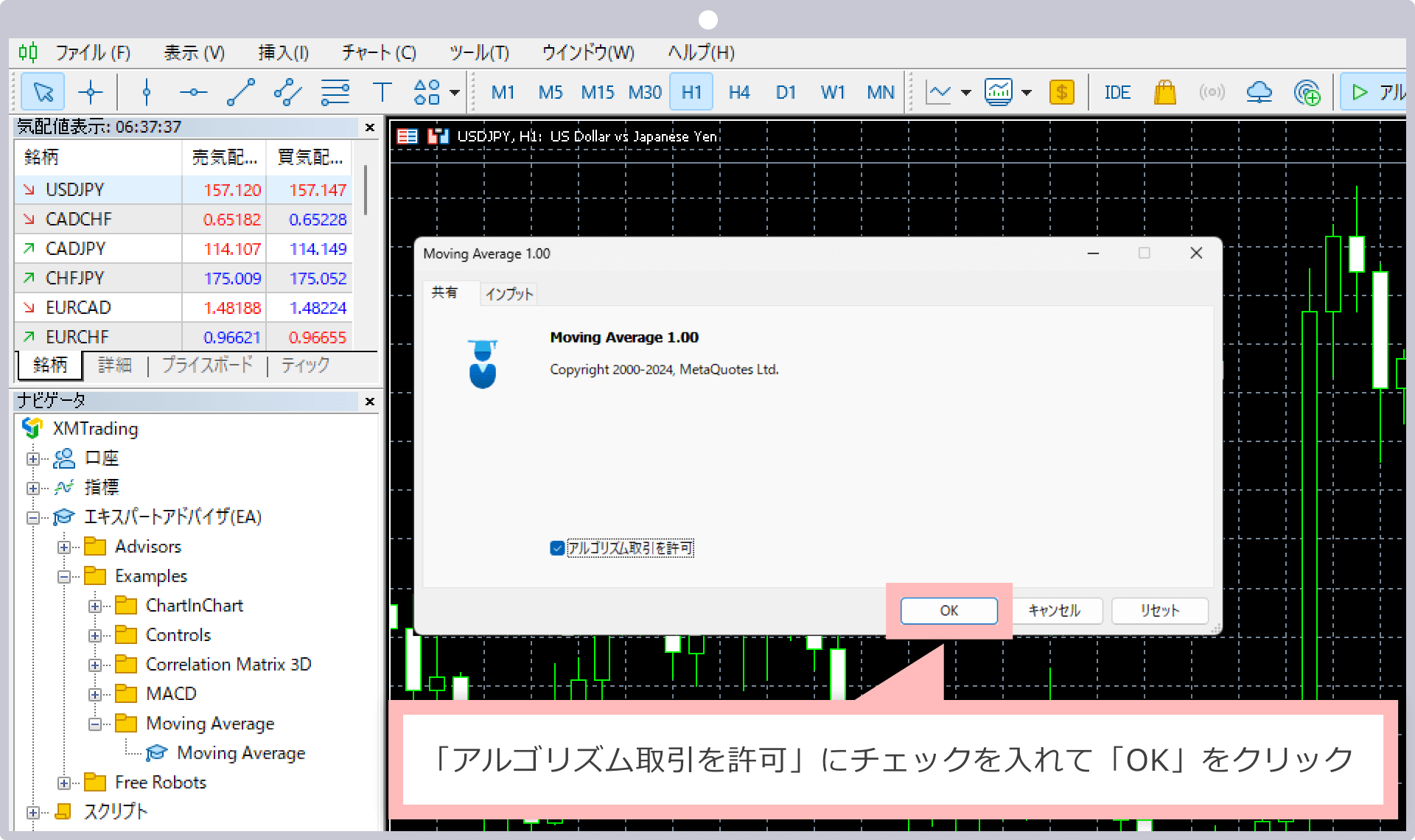
The settings dialog will open. In the 'Common' tab, confirm 'Allow Automated Trading' is checked, then click 'OK'.
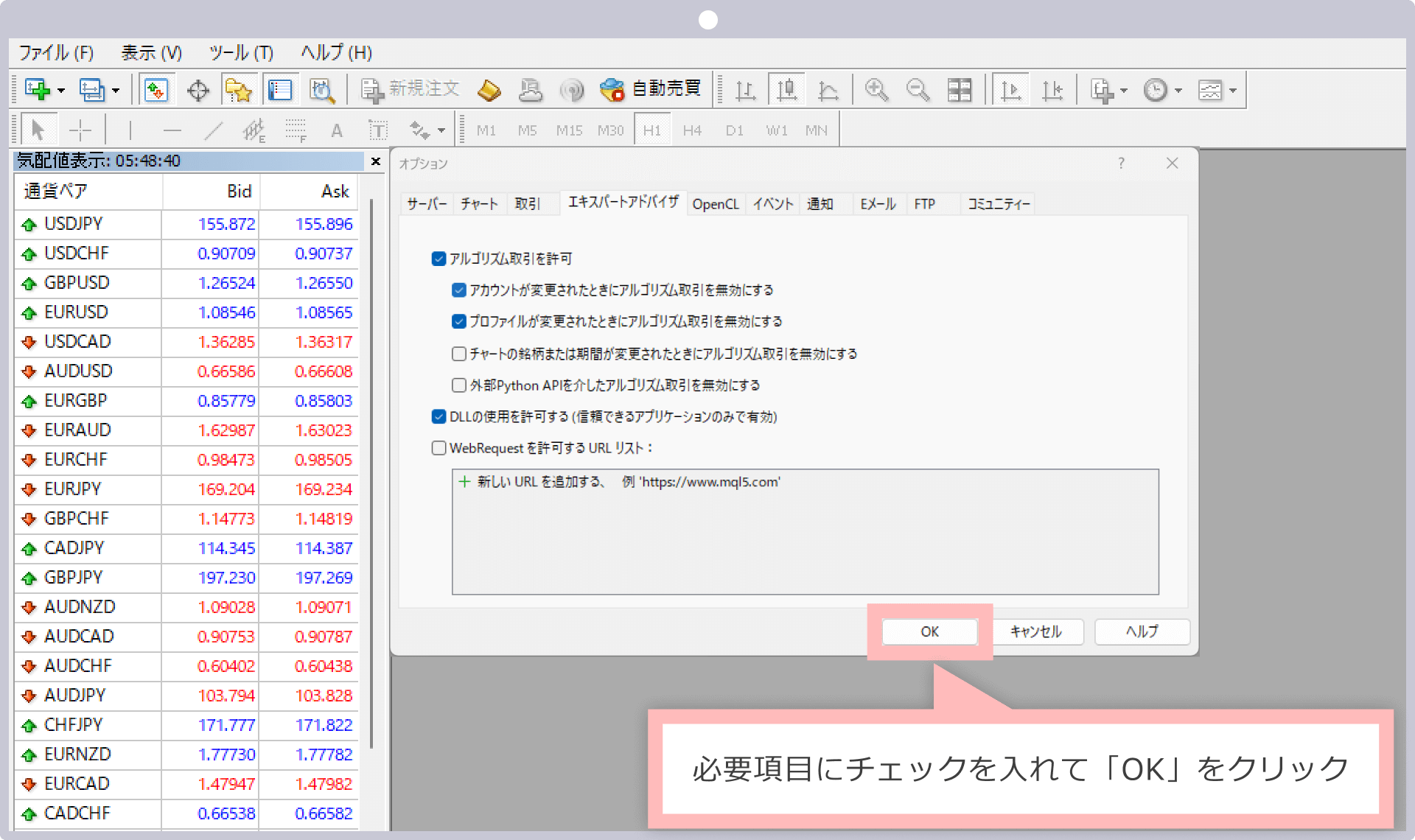
Check 'Allow Automated Trading' - 5
Turn ON Auto Trading Button
Confirm that the 'Auto Trading' button in the MT5 toolbar is green. If the EA name appears in the upper right of the chart, it's running.
EA name and green auto trading button visible in upper right
STEP 4 | Parameter Settings
You can configure values in the 'Input Parameters' tab of the EA's properties dialog. For beginners, it's recommended to use default values.
| Parameter | Default | Recommended |
|---|---|---|
| RiskPercent | 0.5 | 0,5 (pemula: biarkan) |
| FixedLot | 0.0 | 0 (biarkan otomatis) |
| HoldBars | 60 | 60 (tanpa perubahan) |
| Symbol | USDJPY | USDJPY (simbol terdeteksi otomatis) |
See the EA detail page for full parameter details.
STEP 5 | Verify Operation
Let's verify that the EA is running correctly.
- ✓EA name (DONCHIAN_ENGINE_EA) is displayed in the upper right of the chart
- ✓The 'Auto Trading' button in the toolbar is green
- ✓No error messages in the 'Experts' tab
- ✓Always test on a demo account before using a live account
✅ Daftar Periksa Setup EA
- □Menyalin file EA (.ex5) ke folder Experts
- □Auto trading diaktifkan di MT5
- □Membuka chart dengan nama simbol broker yang benar
- □EA dilampirkan ke chart
- □Parameter diatur dan OK diklik
- □Ikon smiley (:-)) ditampilkan di chart
- □Tidak ada error di tab Experts